She believes readers deserve more than a summary of features or information repeated from a company's website. Whenever possible, Judy personally tests the products, apps, settings, and tools she writes about. The hands-on approach allows her to explain how something works in everyday use. What it does well, where it falls short, and whether it's generally worth the reader's time.
Judy regularly works across Windows, Android, iPadOS, macOS, and Linux. Her devices include an Asus Zenbook 14X OLED Space Edition laptop. A Samsung tablet, an iPad, and several other devices. She uses it to compare platforms and test different workflows. She is especially interested in finding practical ways to help people get more from the technology they already own.
Most of Judy's articles use a first-person perspective because her recommendations come from direct experience. She does not recommend a feature simply because it sounds useful. She tests it, looks for its limitations, and considers how it would affect a regular user. Her goal is to provide clear, honest advice that helps readers make confident decisions without unnecessary jargon or exaggerated claims.
Sometimes I get so many notifications on my iPad that I feel overwhelmed. With notifications from subscriptions, emails, and other apps, I end up telling myself I’ll deal with them later, which risks missing something important.
Fortunately, you don't have to silence your device to declutter your lock screen. These three iPad settings let you control when alerts arrive and how they appear on your Lock Screen, without turning everything off.
Scheduled Summary
Get less-important notifications at a time that works for you


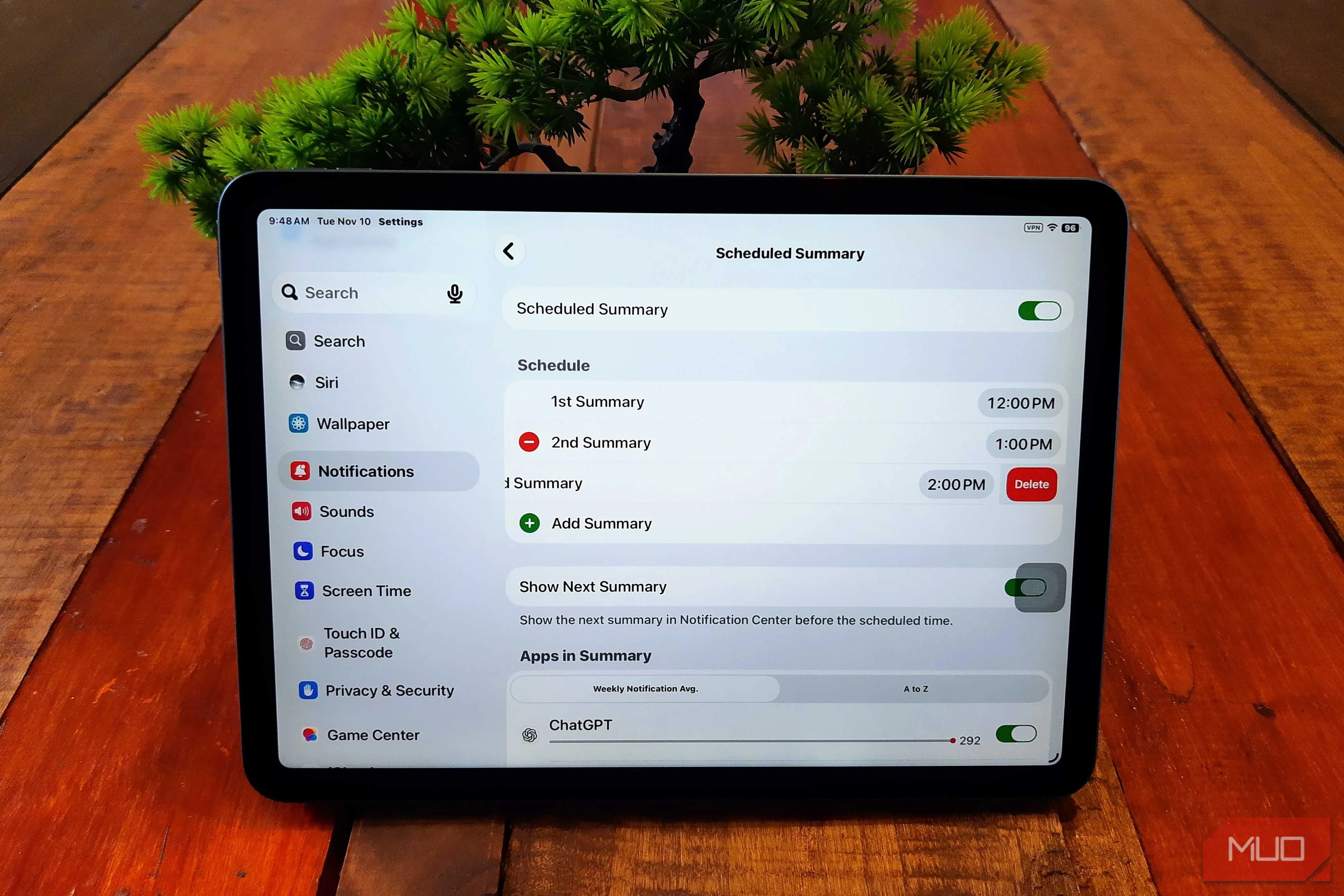
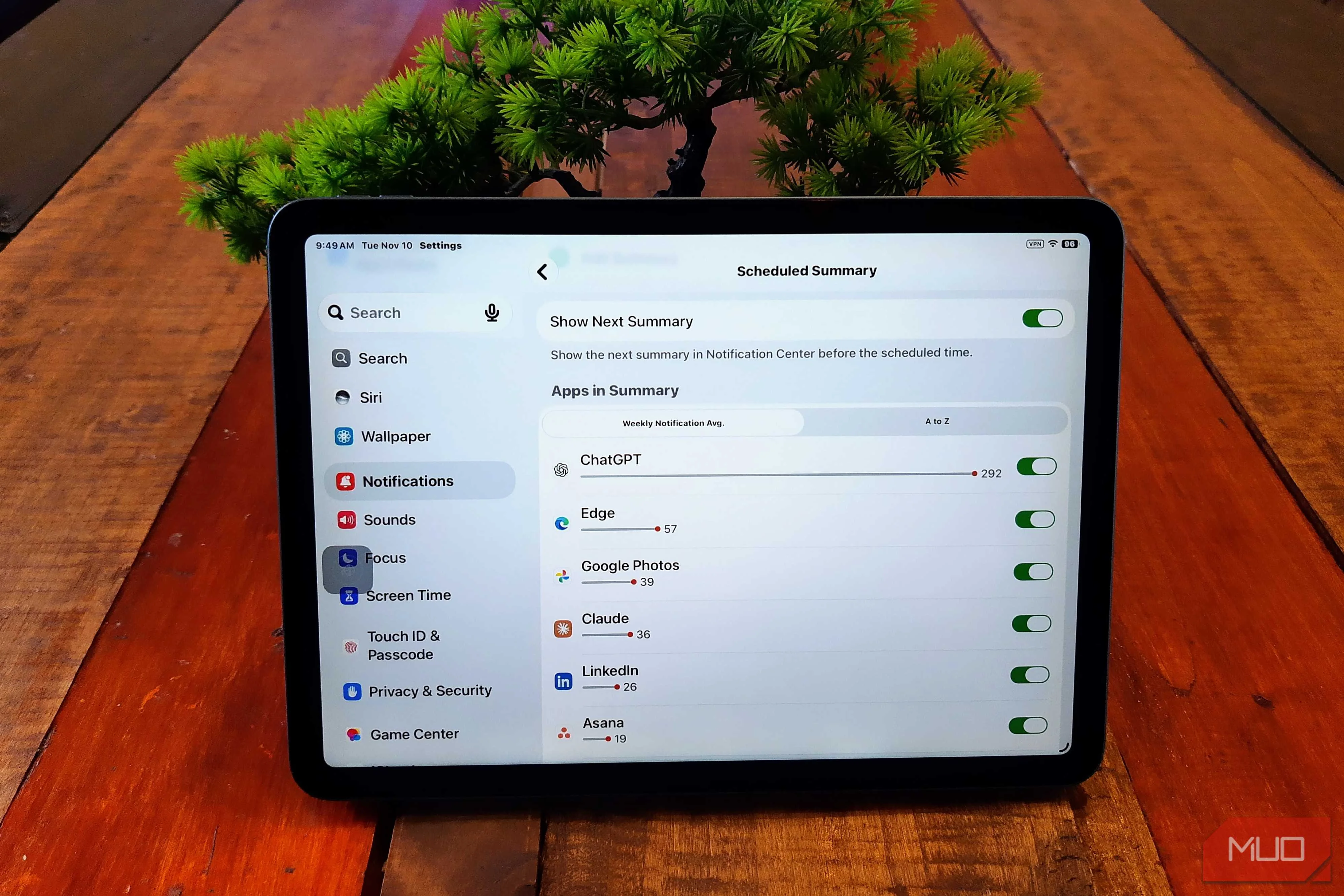
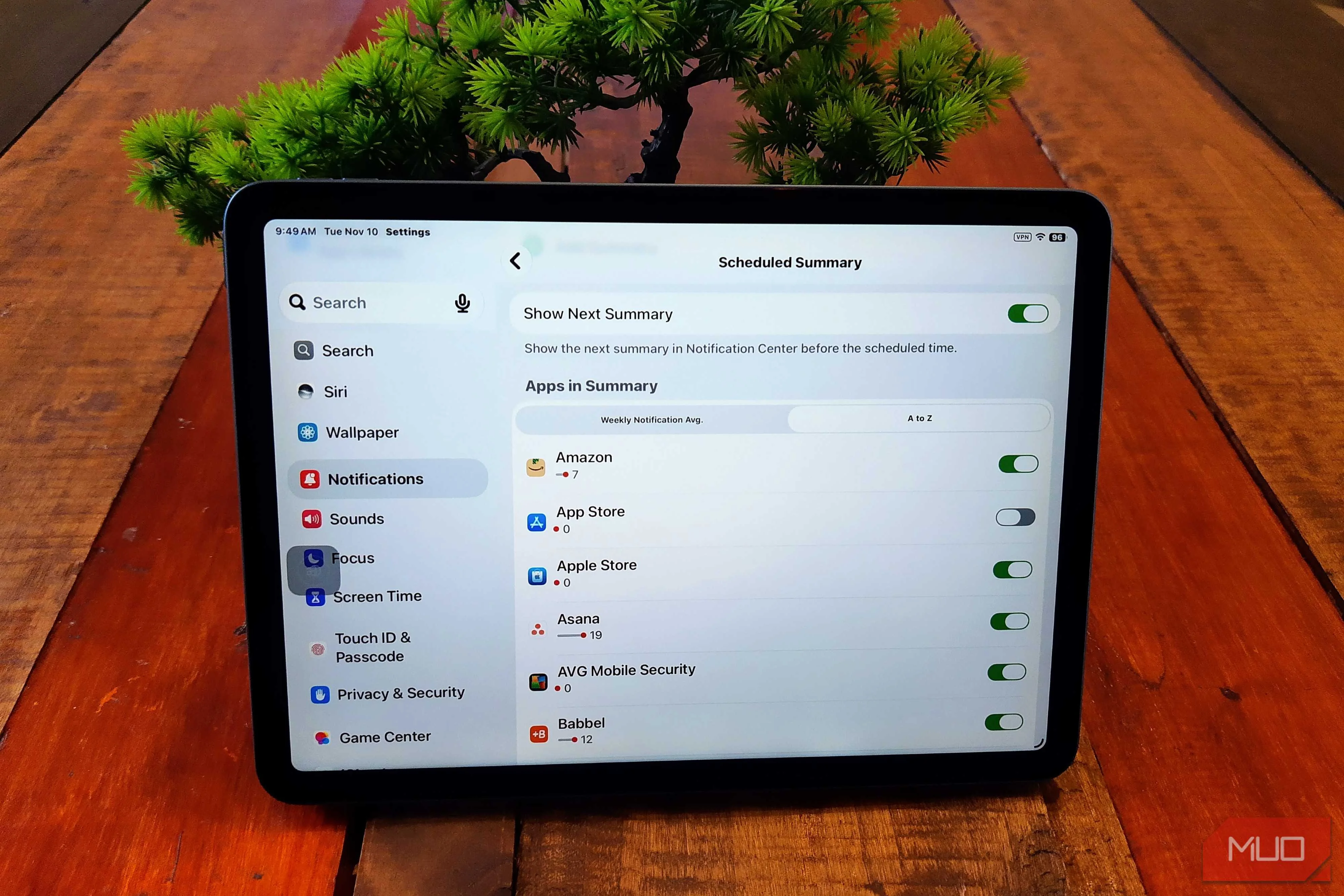
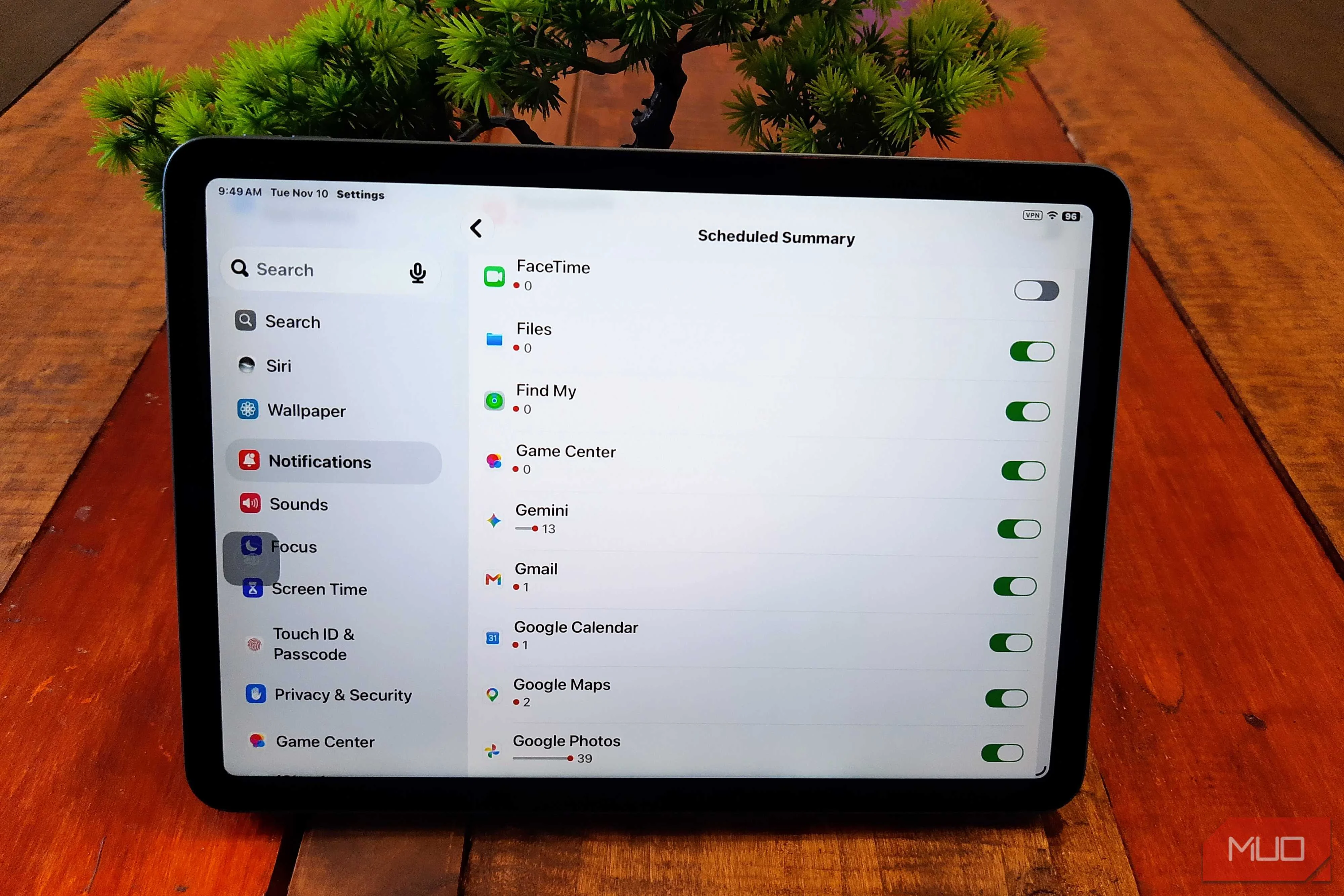
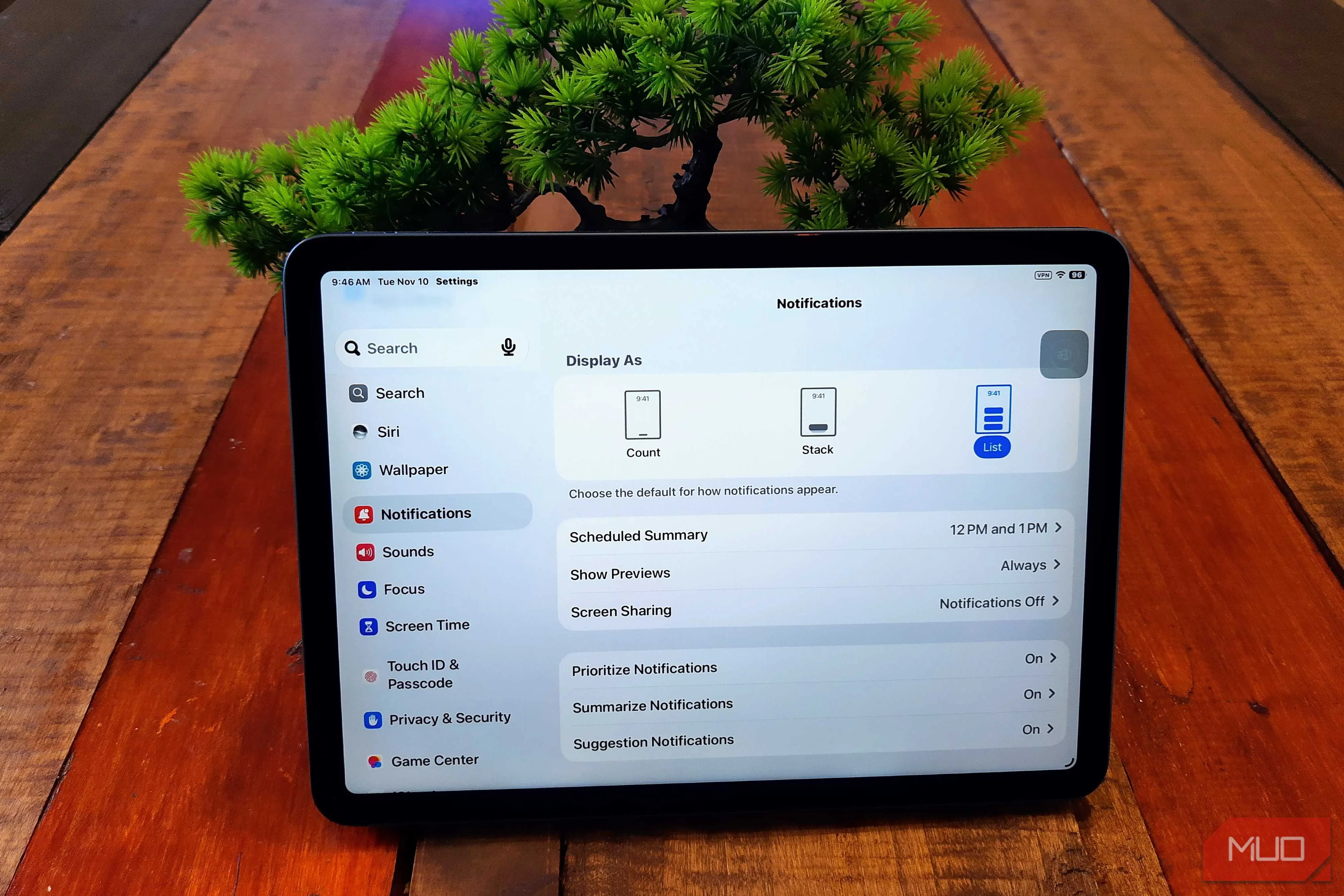
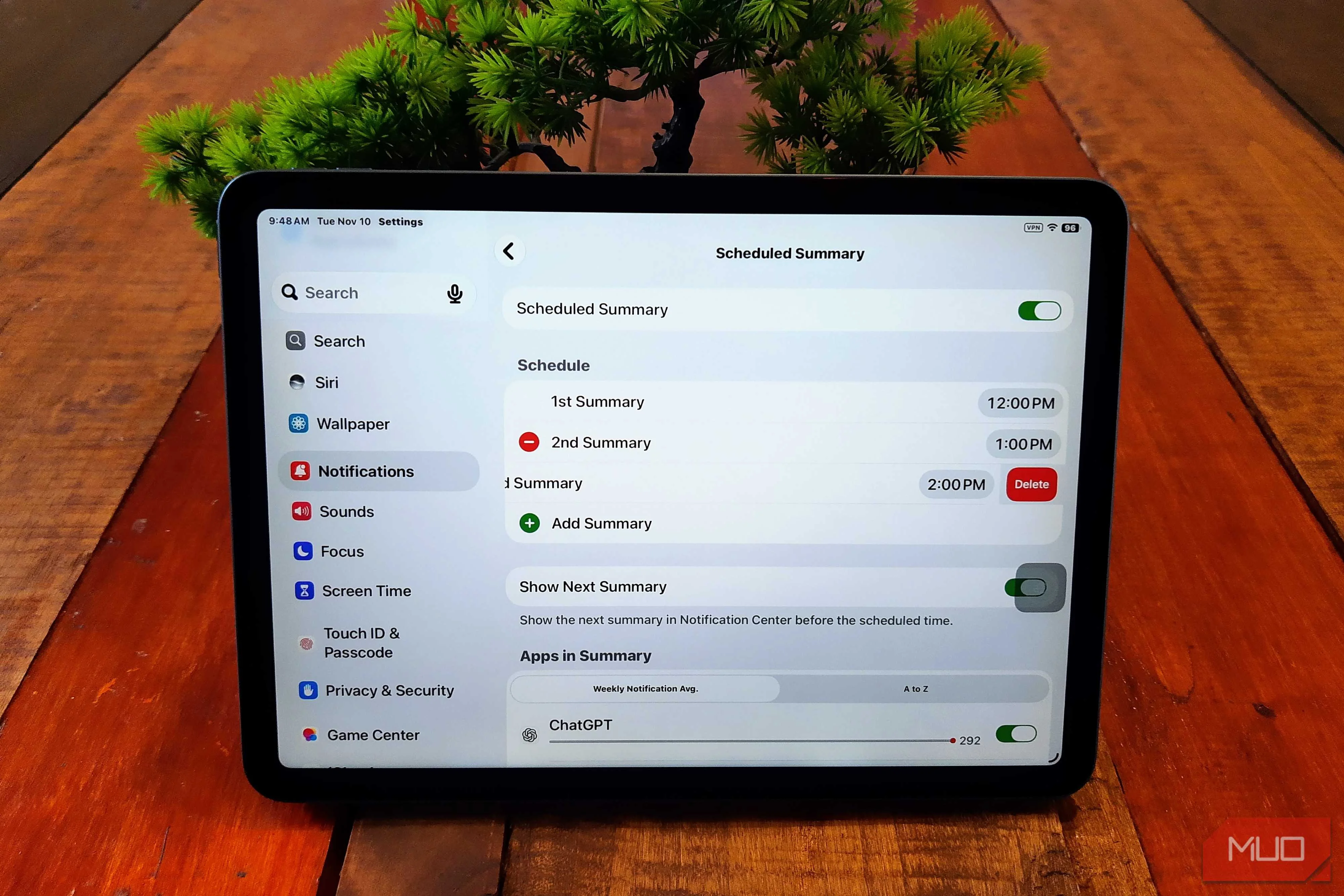
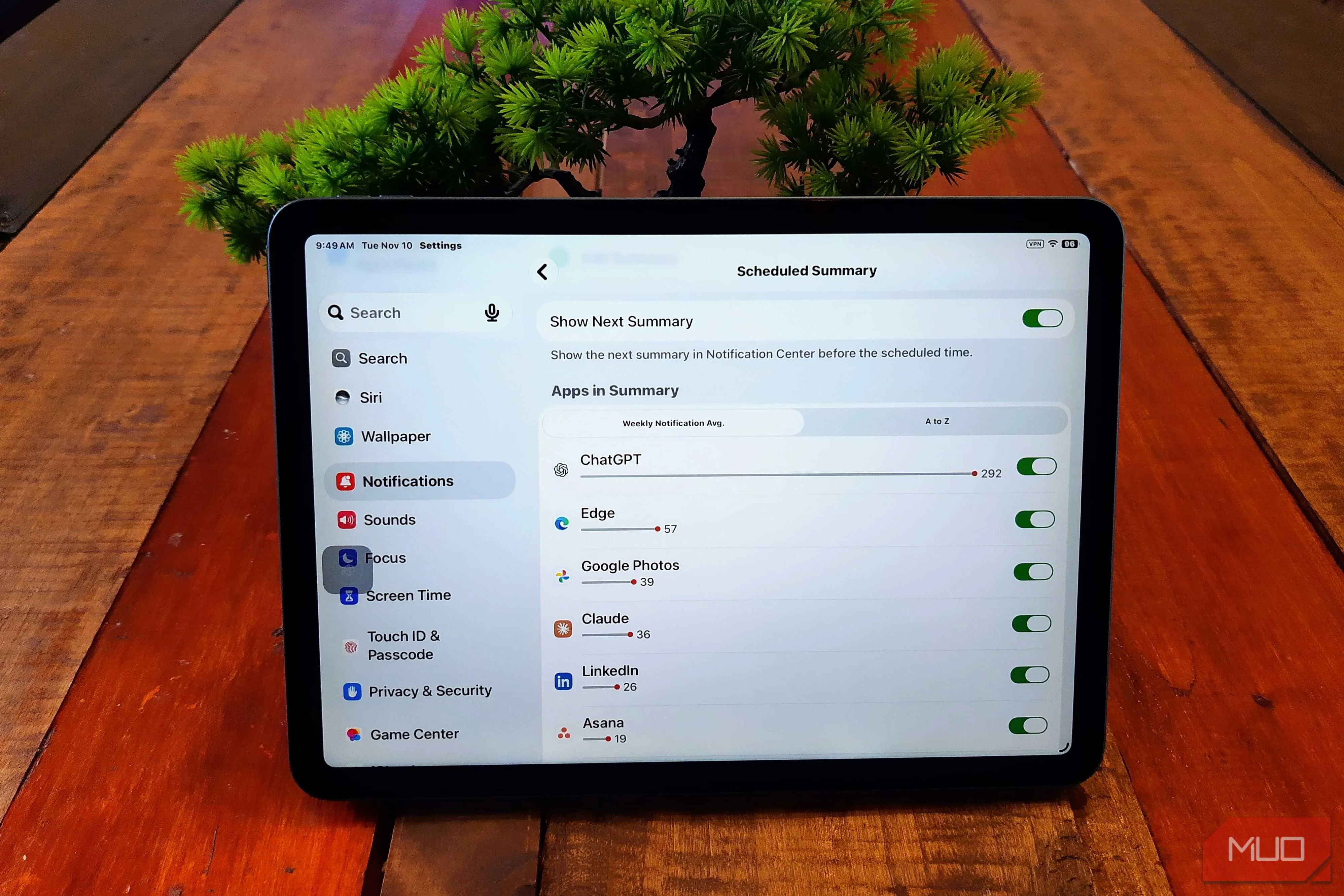
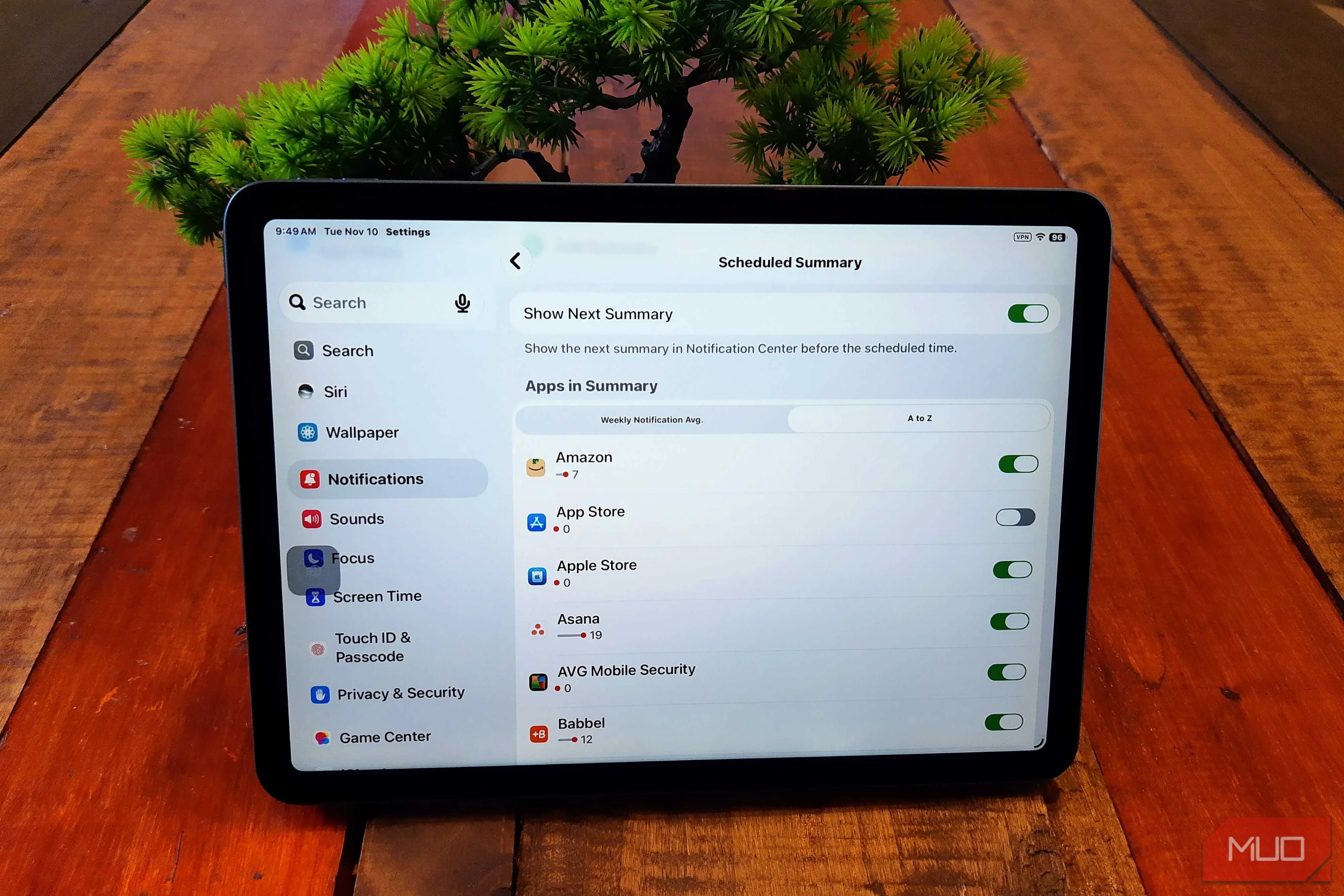
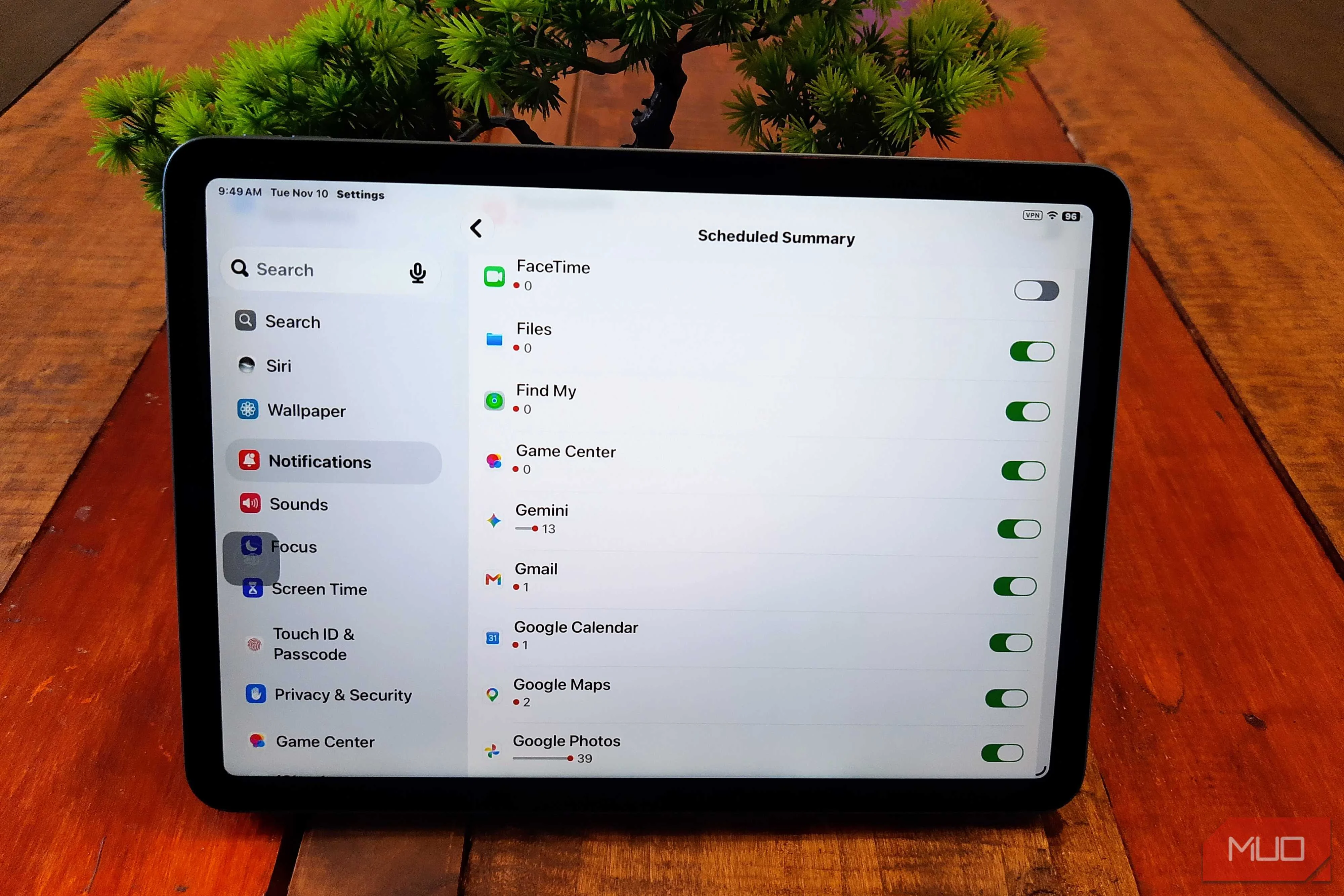
Scheduled Summary helps reduce interruptions, so notifications don’t keep breaking your workflow. You still get notifications from the apps you pick, but all at once, at the time you choose. And if you want, you can have it show up several times a day.
You decide which apps go in and which ones don’t. Anything you leave out keeps showing up. On my iPad, Gmail, Edge, Claude, and Flipboard all landed together in my 1 p.m. summary, while ChatGPT kept popping up on its own. In the morning, I like to focus on my projects and not even look at my emails. If it’s something important, I’ll get to it at 1.
For me, important means same-day, not the second it lands. And if an app marks something as Time Sensitive, it can still get through right away. Not every app supports that, though.
To try it, go to Settings > Notifications > Scheduled Summary.
If you see that an app you’ve included in your summary keeps getting through, you can stop it by going to Settings > Notifications > (app name) and turning off Time Sensitive Notifications. You’ll only see it if the app uses it.
Alerts
Not every app deserves a spot on your Lock Screen
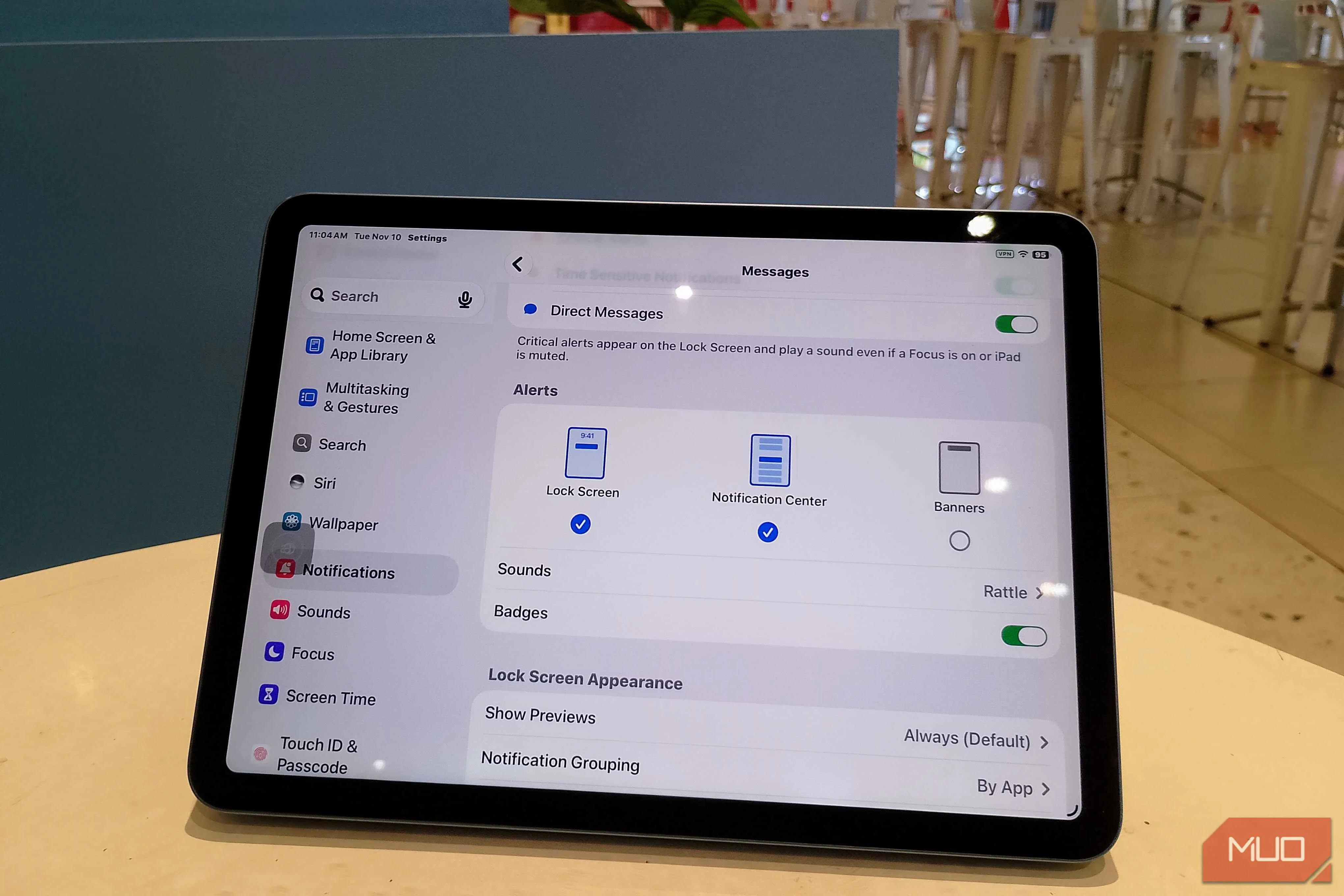
Alerts may seem simple, but they're still useful because they keep less important notifications off your Lock Screen. That way, you can stay focused on whatever you’re doing.
That doesn’t mean you won’t get those notifications. They'll go to the Notification Center, where you can review them later. The other option would be to turn notifications off, but that would be even worse. In my case, I set Messages to stay on my Lock Screen, while notifications from less important apps go straight to the Notification Center.
If you want to try it, go to Settings > Notifications > (app name). Under Alerts, uncheck Lock Screen and leave Notification Center checked.
You don’t have to dig through Settings when a less important notification shows up on your Lock Screen. Swipe left until you see Options > View Settings. If you only need a break, Mute for 1 Hour or Mute for Today sends that app’s notifications straight to the Notification Center.
Count View
The avalanche shrinks to a number

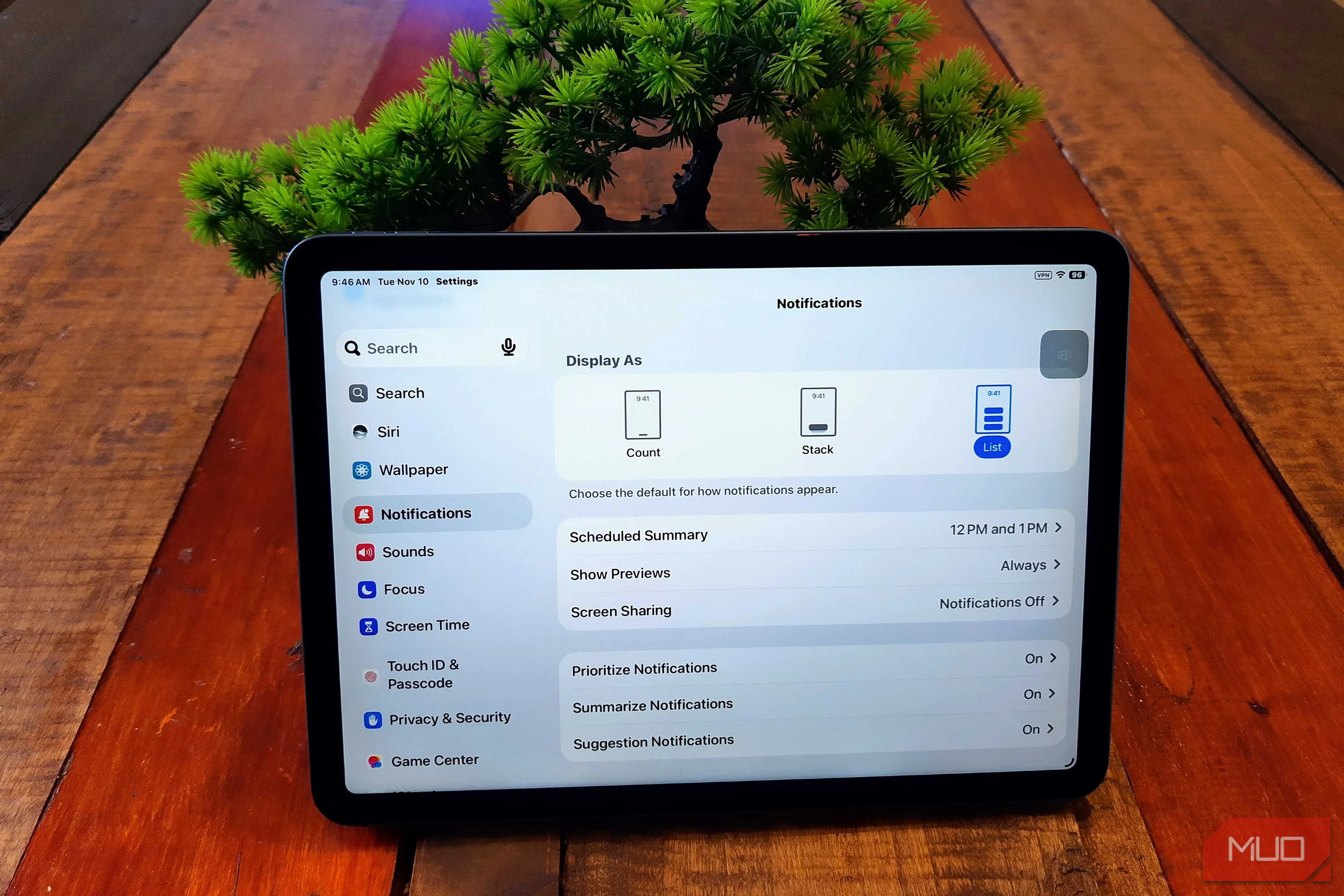
Count helps you reduce the avalanche by showing a number at the bottom of your Lock Screen instead of all your notifications. That way, you still know how many notifications you need to look through without swiping through 20 or 30 of them.
Turning them into a number isn’t the same as deleting them, because they’ll still be there when you tap it. That’s what I saw when my sister kept sending me messages. My Lock Screen just said 12 Notifications at the bottom, and when I tapped it, all 12 were there.
To turn it on, go to Settings > Notifications, and under Display As, tap Count. If you ever get tired of Count, you can always switch back to Stack or List.
Do Not Disturb seems like the easiest fix
One switch, total silence
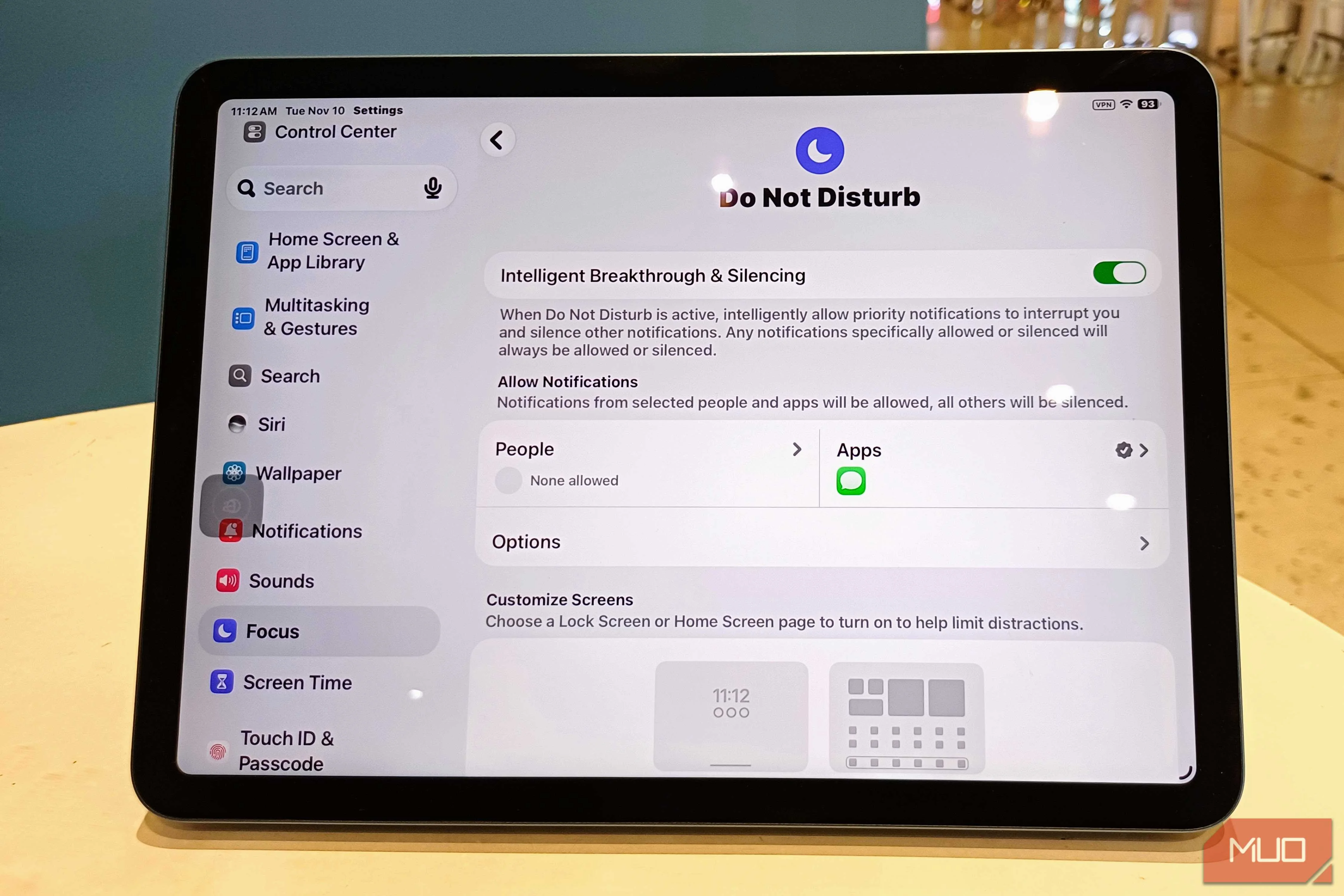
Do Not Disturb makes things a lot easier, since you only have to toggle one button to get the total silence you’re aiming for. It silences calls, alerts, and notifications, which makes it a good way to pause the avalanche.
You’ll know Do Not Disturb is on because you’ll see a little moon icon in the status bar and on your Lock Screen. So if you ever wonder why it’s too quiet, just glance at your iPad. You also don’t have to worry about remembering to turn it off, since you can set a timer. For example, if you want an hour of quiet, set it for an hour and forget about it.
If you still want to hear from certain people, like family in an emergency, or get notifications from certain apps, you can let them through. Go to Settings > Focus > Do Not Disturb, tap People or Apps, and add them under Allow Notifications From.
Do Not Disturb doesn’t solve the whole problem
Control the clutter instead of silencing everything
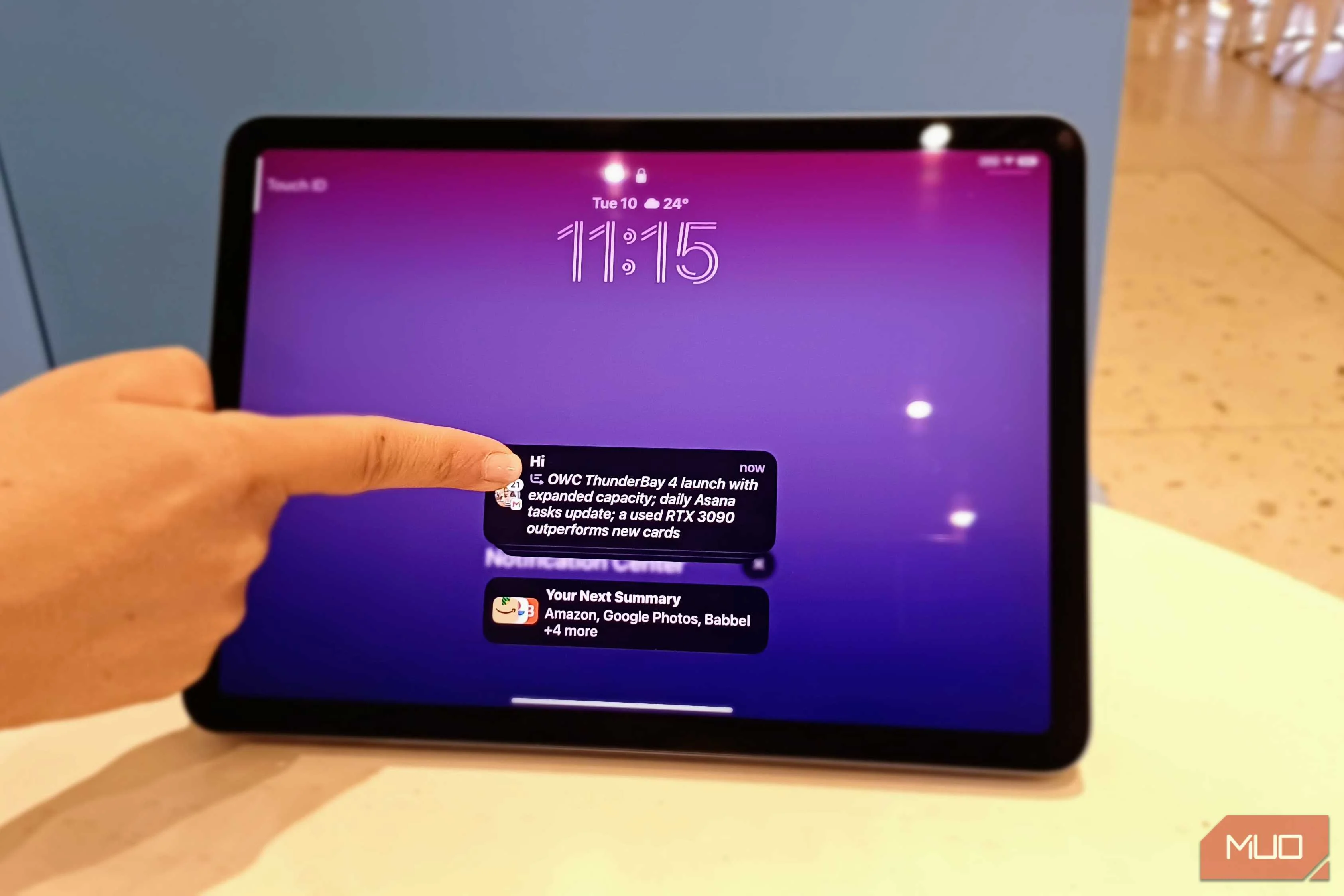
It’s true that Do Not Disturb works well when you need a break. You can turn it on for an hour and get some quiet time. But depending on your Focus settings, silenced notifications can still show up on your Lock Screen. You can turn off Show On Lock Screen to hide them, but that only helps while Do Not Disturb is on.
You don’t have to keep turning on Do Not Disturb just to deal with a crowded screen. You can have Scheduled Summary hold your email notifications until 1 p.m. and let Alerts keep Messages where you can see them. And when notifications start piling up again, Count keeps them from filling your screen. You can still check everything when you’re ready, without silencing your iPad all day.
I’m not scared of my Lock Screen anymore
I still tell myself I’ll deal with my notifications later. The thing is, "later" now means 1 p.m., and by then everything’s waiting for me in one place instead of piling up all morning. The noisy apps sit in my summary until then, and the ones that matter more still make it to my Lock Screen, even if all I see is a number at the bottom. Give these three settings a week or so and see how it goes.