Tashreef's fascination with consumer technology began in the school library when he stumbled upon a tech magazine, CHIP, which ultimately inspired him to pursue a degree in Computer Science. Since 2012, Tashreef has professionally authored over a thousand how-to articles, contributing to Windows Report and How-To Geek. He currently focuses on Microsoft Windows content at MakeUseOf, which he has been using since 2007.
With hands-on experience building websites and technology blogs, he brings practical developer insights to his technical writing. You can view his complete work portfolio at itashreef.com.
You might also stumble upon his short how-to video explainers, simplifying complex topics. Beyond writing, Tashreef enjoys creating short explainer videos, gaming, and exploring animated shows.
I am not a fan of the new context menu in Windows 11, so I've been using the old Windows-style menu for a long time now. You can disable the new context menu with a simple terminal command (I'll share that below) or even fix it by removing the useless junk it adds using Nilesoft Shell.
Even then, the old context menu had more junk that I didn't need, and less of what I use daily. Think emptying the recycle bin from the context menu or launching the Snipping Tool from anywhere with a right-click. Easy Context Menu lets you do just this and doesn't cost a cent.
First, bring back the classic right-click context menu
Easy Context Menu only works with the old-style menu
Easy Context Menu from the legacy Sordum developers is a dedicated context menu customization app for Windows. It has been around for over a decade and still works reliably on Windows 10 and 11. What it does is let you add small tools you access frequently to the right-click context menu. You can add shortcuts to launch Command Prompt, block your keyboard, open Windows Registry, delete temporary files, copy your IP address, launch Snipping Tool, and more.
However, it only works with the classic Windows 10-style context menu. On Windows 11, you'd have to right-click, select Show more options, and then choose the tools from the classic context menu. That's one click too many for something that's supposed to be quick.
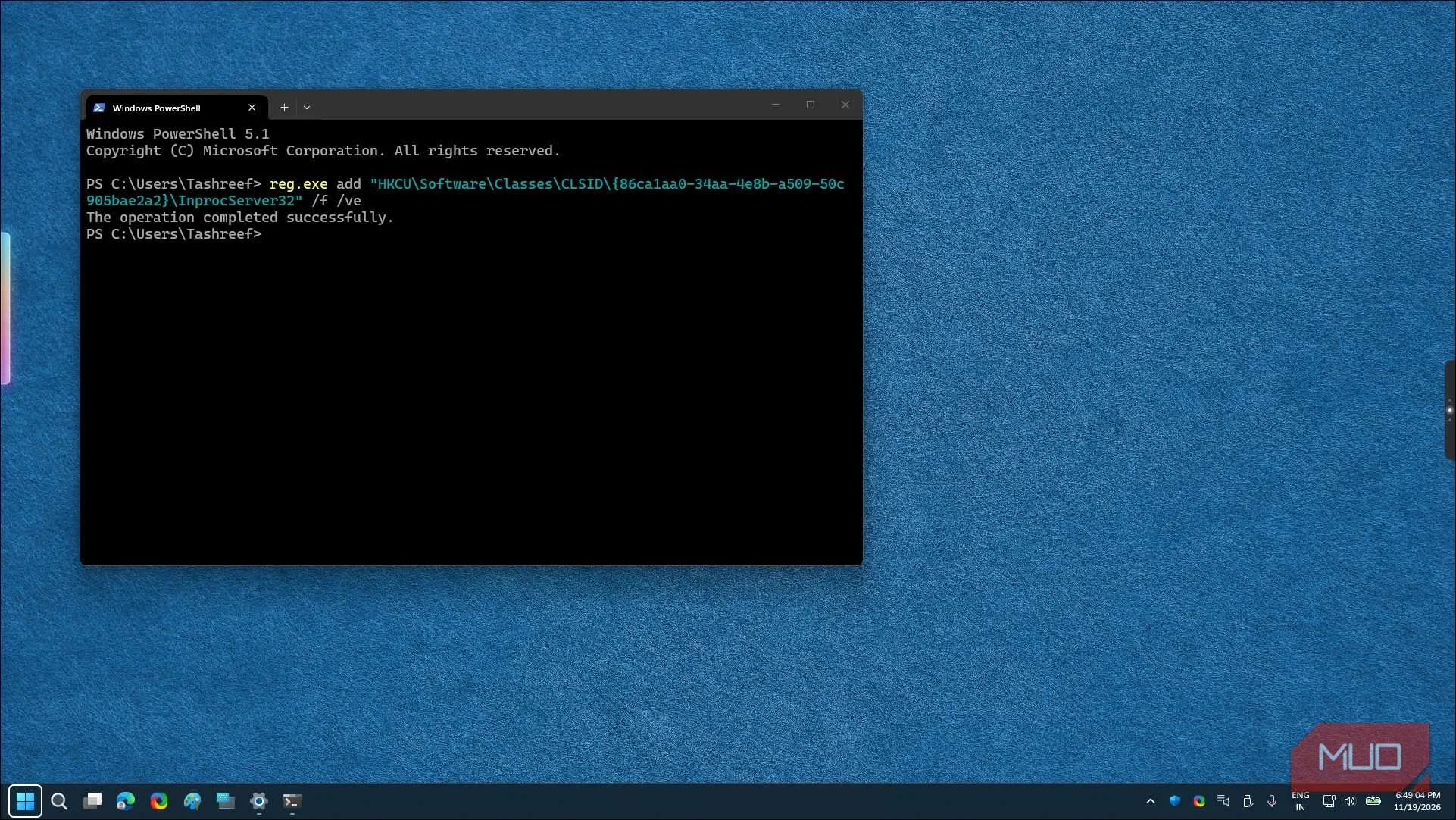
You can restore the classic context menu with a single PowerShell command. Open PowerShell as administrator, and then type the following command:
reg.exe add "HKCU\Software\Classes\CLSID\{86ca1aa0-34aa-4e8b-a509-50c905bae2a2}\InprocServer32" /f /vePress Enter, and then restart Windows Explorer. Open Task Manager, type Explorer in the search bar, select Windows Explorer, and choose Restart task. Your screen will flash briefly as the process restarts. Right-click on the desktop, and you should see the classic context menu.
If you ever need to restore the modern context menu, use this command instead:
reg.exe delete "HKCU\Software\Classes\CLSID\{86ca1aa0-34aa-4e8b-a509-50c905bae2a2}" /fEasy Context Menu adds useful tools to your right-click menu
Pick the shortcuts you want and apply them in one click


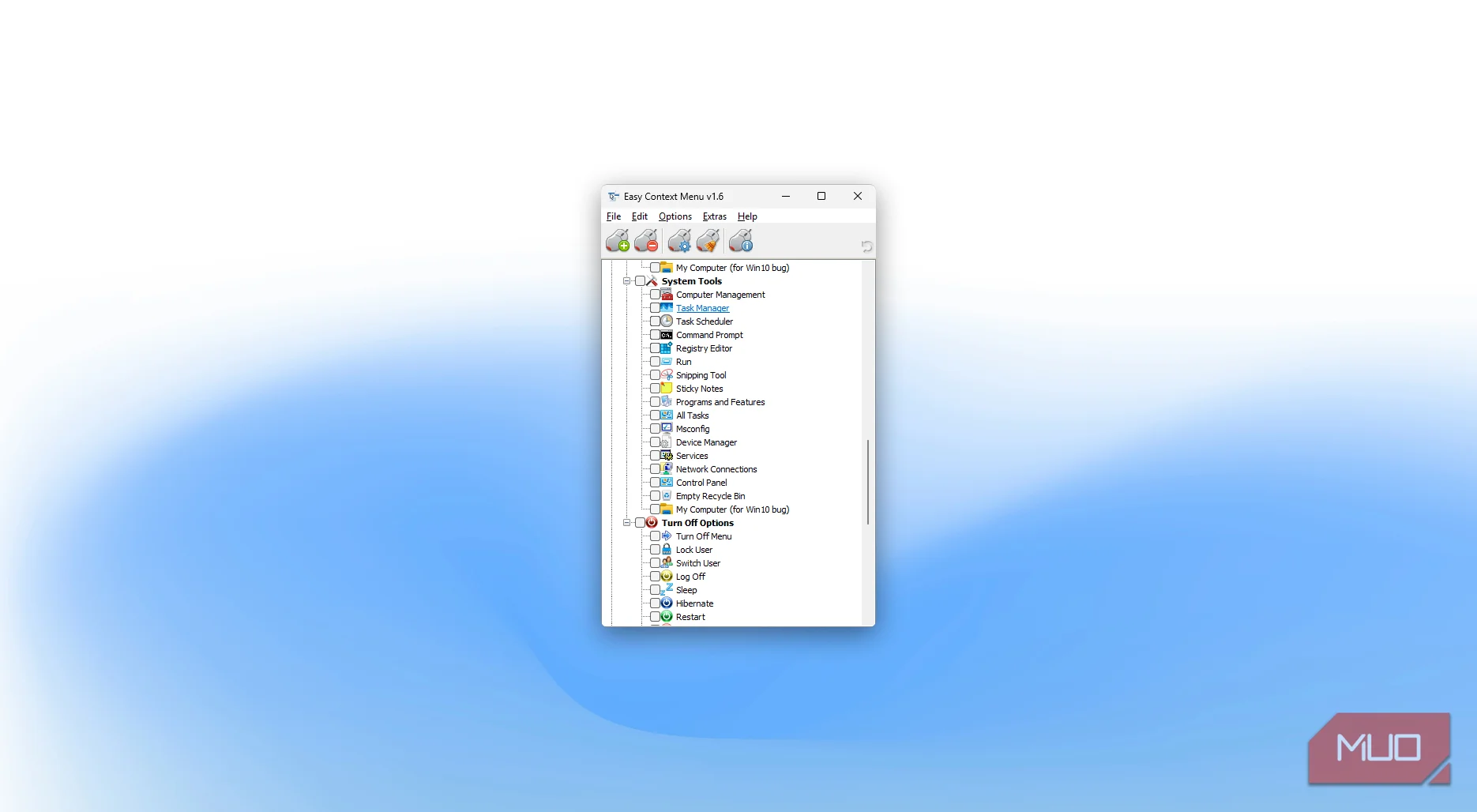
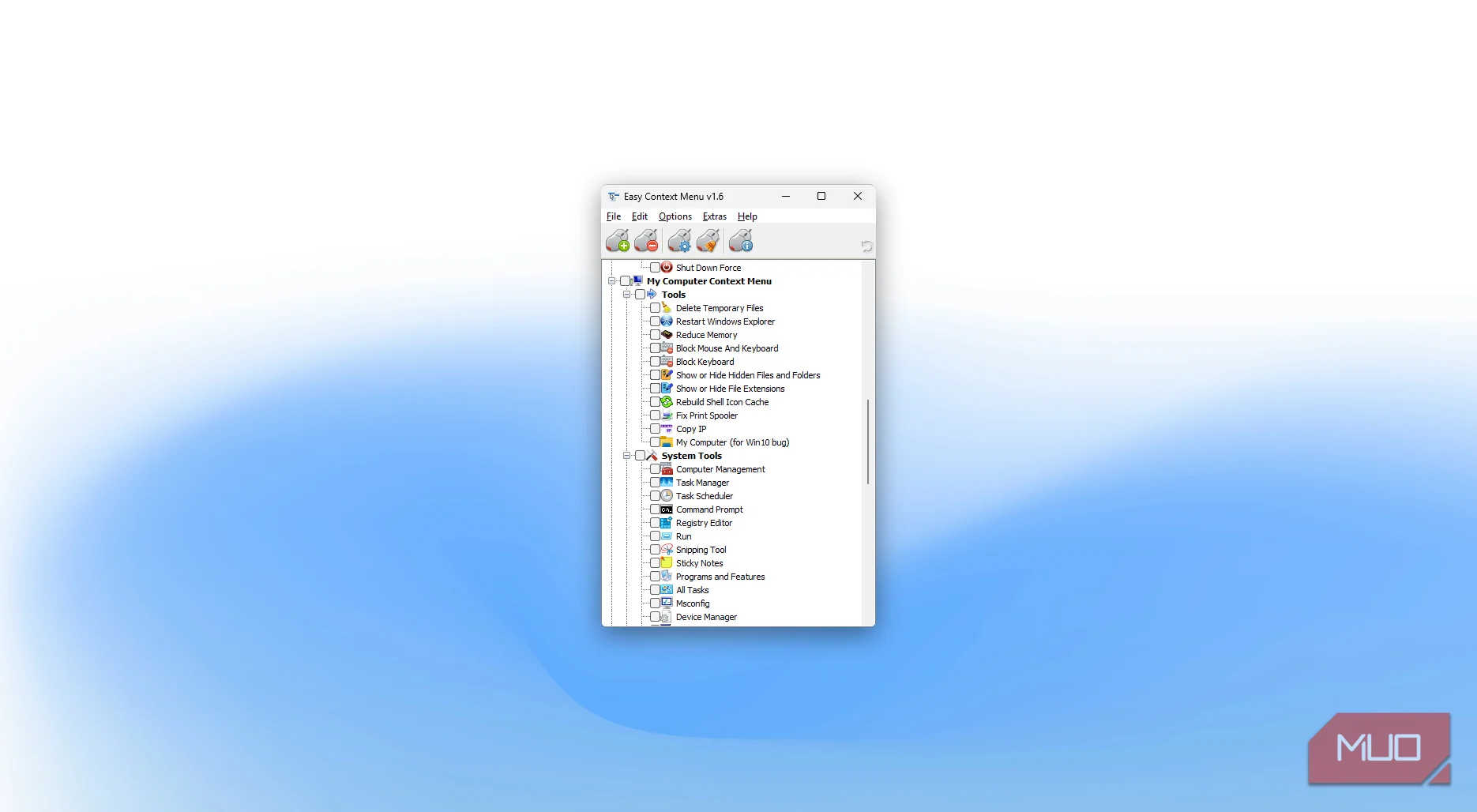
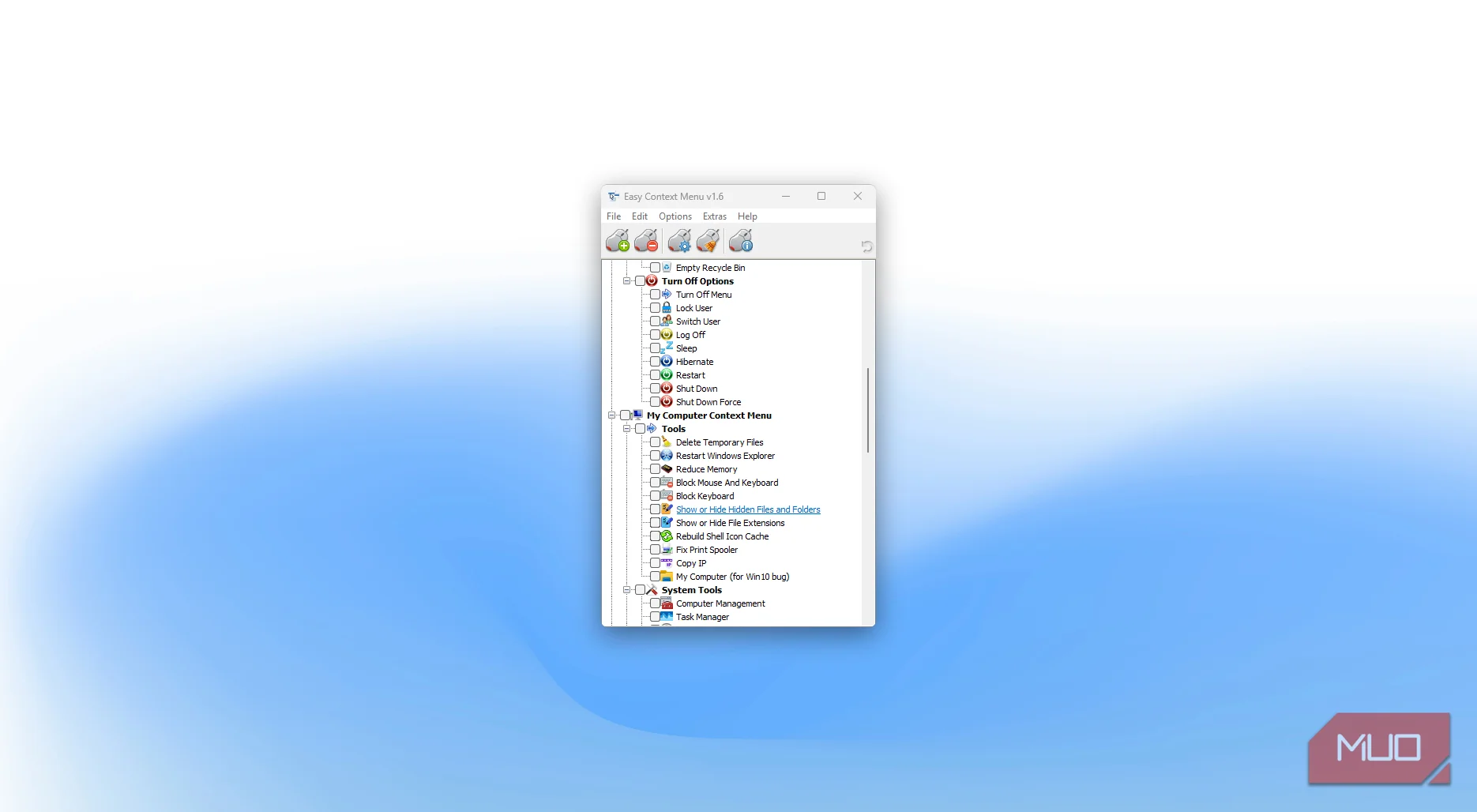
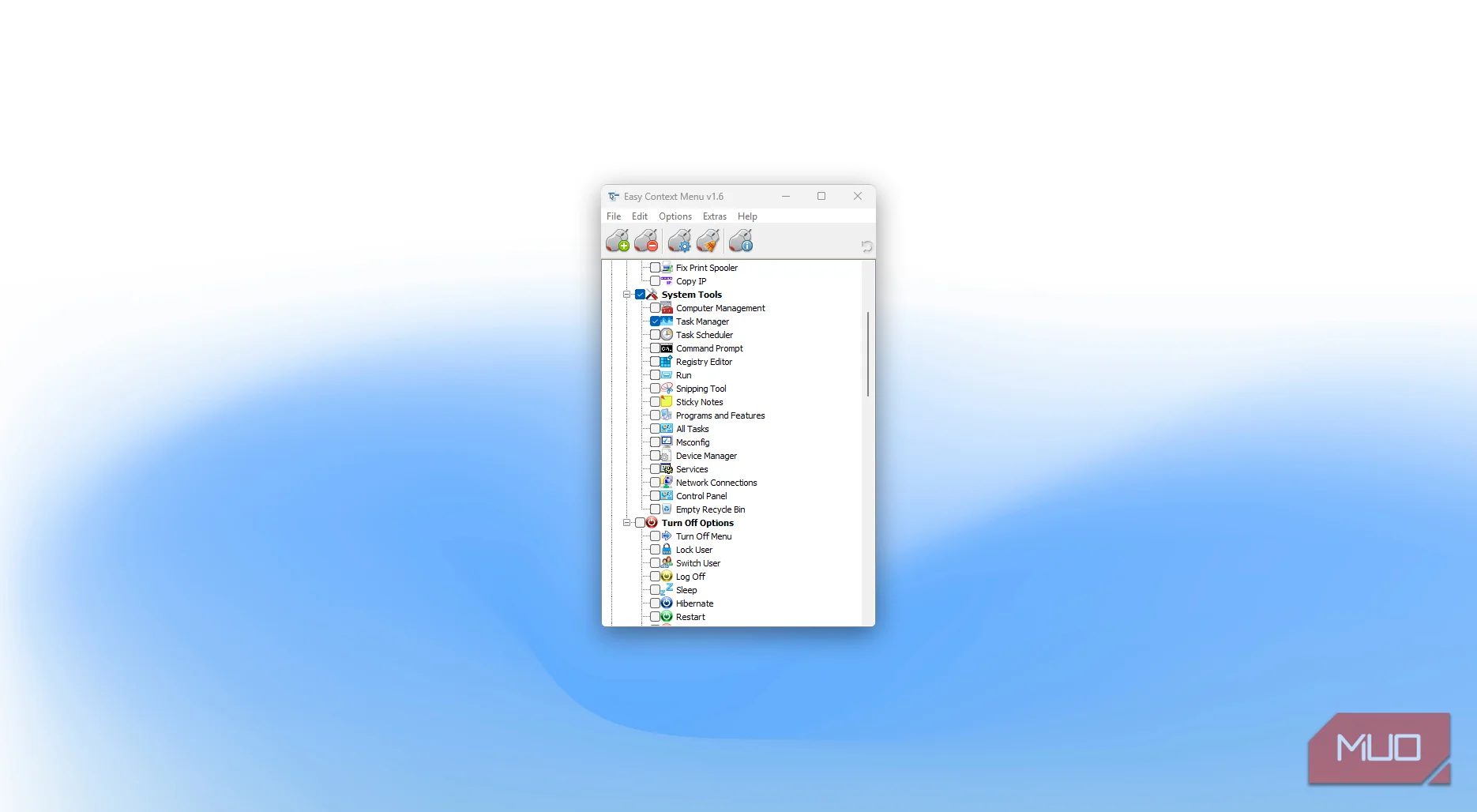
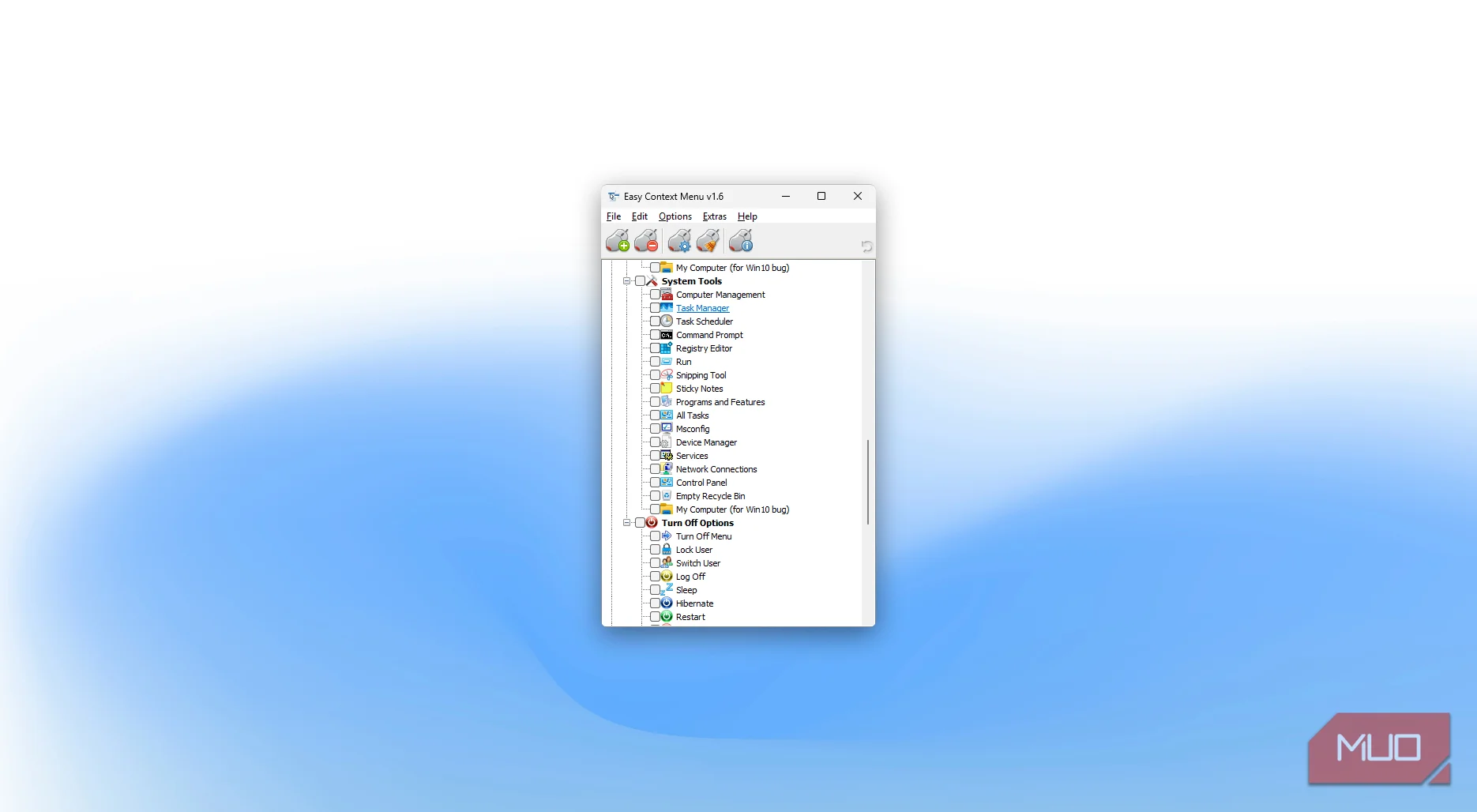
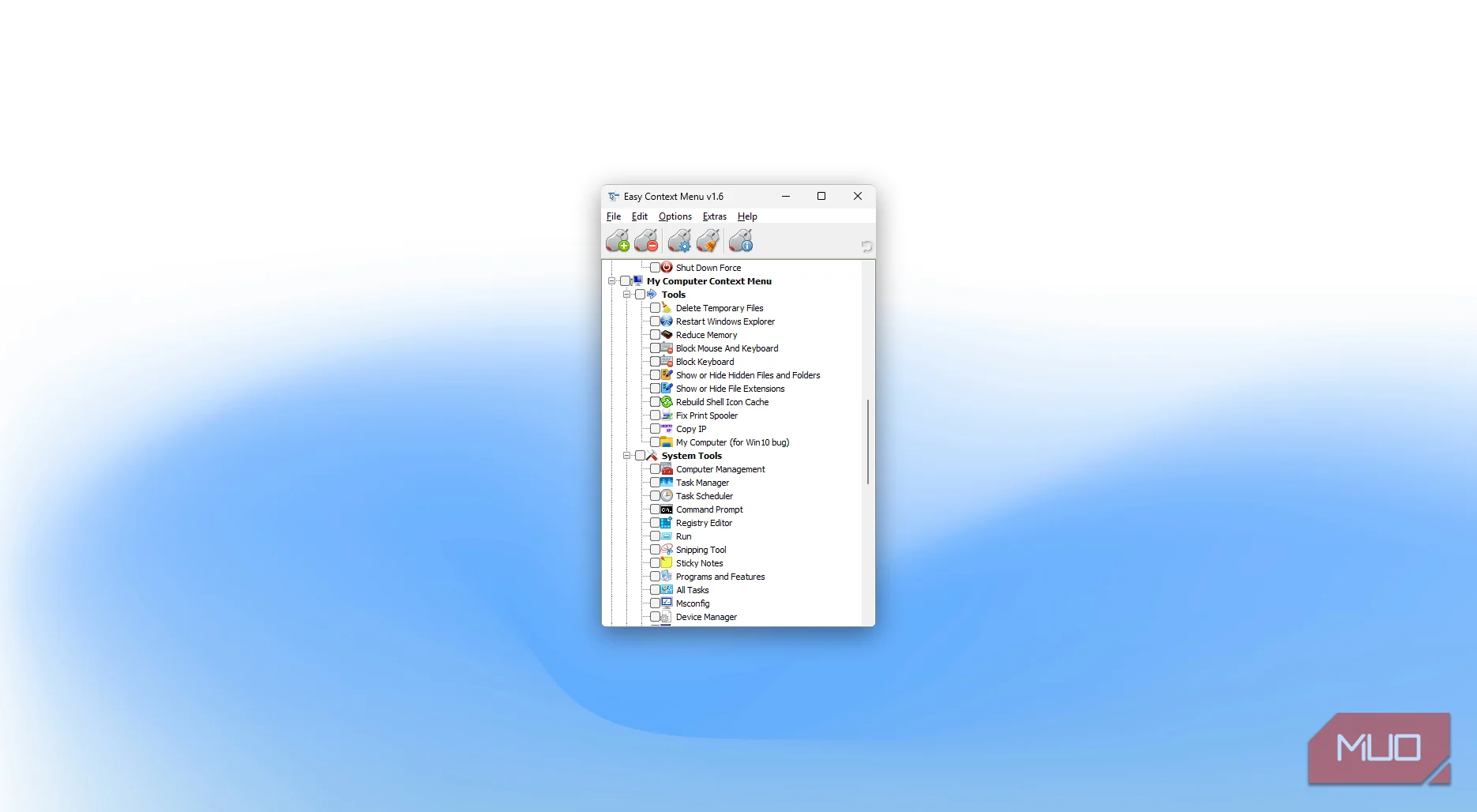
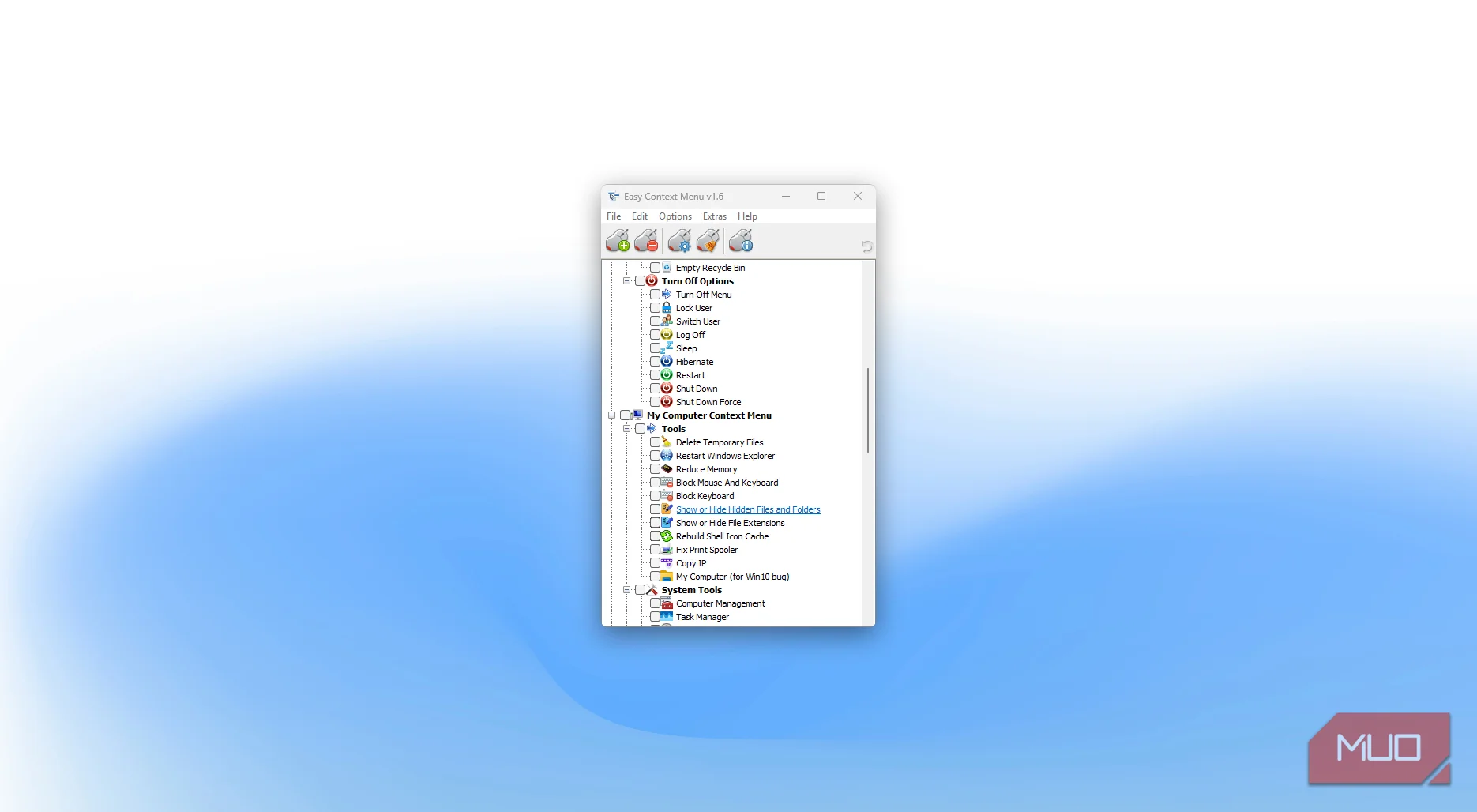
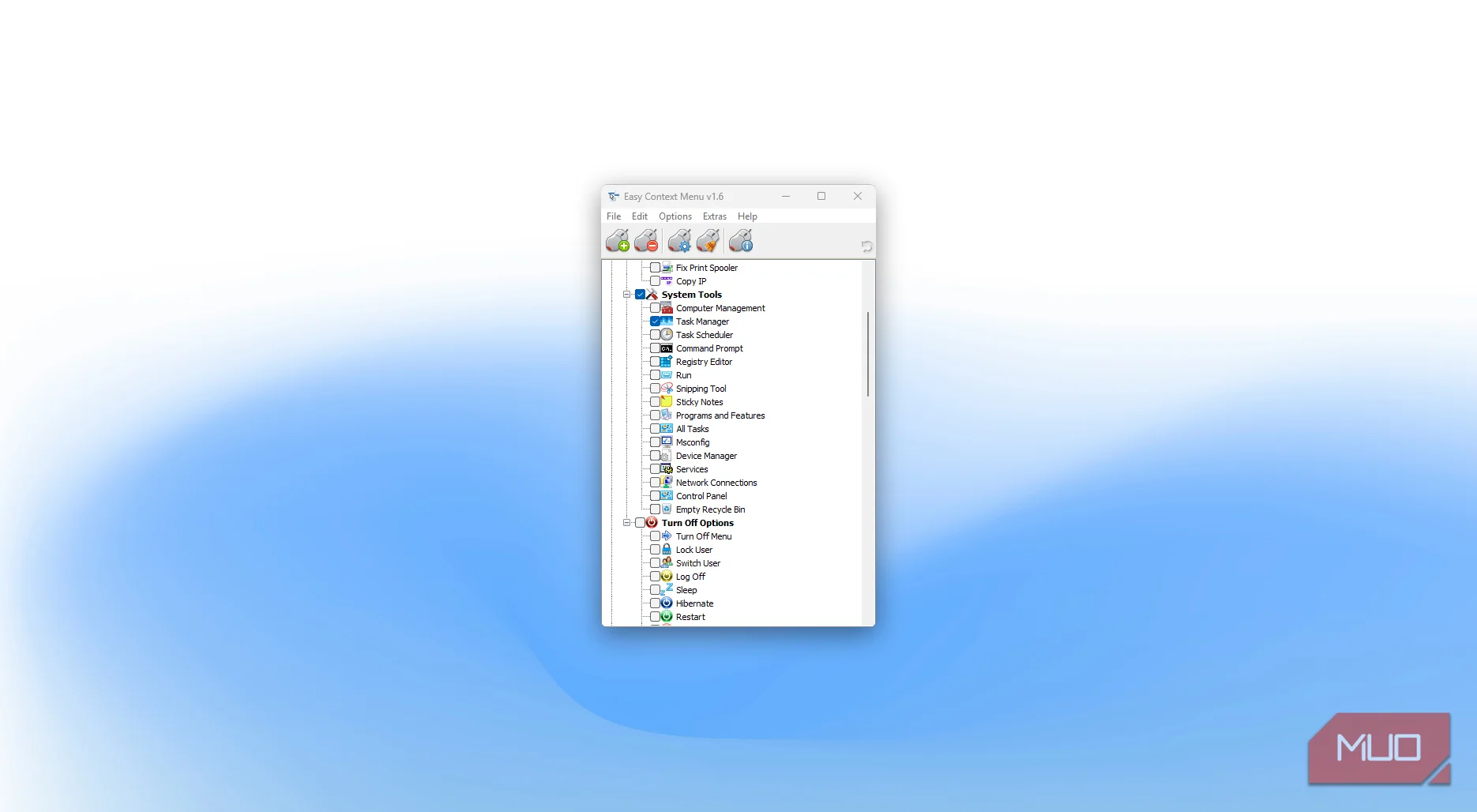
To get started, head to the Easy Context Menu page and download the latest version. Extract the ZIP file and run the .exe. It's a portable app, so no installation is needed.
In the Easy Context Menu window, tick the checkbox next to any item you want in your context menu, then click the Apply Changes button (the mouse icon with a + sign) in the toolbar to save your changes. The added items will show up the next time you right-click in File Explorer or on the desktop.
Easy Context Menu organizes its tools into six main categories:
- Desktop Context Menu: Adds shortcuts like Open Command Prompt Here, Select All Files, and Delete Temporary Files to your desktop right-click menu.
- My Computer Context Menu: Puts system tools like Task Manager, Registry Editor, Snipping Tool, Device Manager, Empty Recycle Bin, and Services into the This PC context menu.
- Drives Context Menu: Adds options like Disk Cleanup, Defrag, and Change Icon when you right-click a drive.
- Folder Context Menu: Gives you options like Open Command Prompt Here, Windows PowerShell, Take Ownership, Copy Folder Contents List, and Permanently Delete for folders.
- File Context Menu: Adds Open with Notepad, Copy Text Contents, Take Ownership, and Change Attributes to file right-click menus.
- Exe File Context Menu: Specifically for executable files, with options like Run with Parameters, Add to Firewall, and Delete from Firewall.
There's also a Turn Off Options category that adds shutdown, restart, sleep, hibernate, and lock shortcuts to your context menu. I found this surprisingly useful for quickly putting my laptop to sleep without navigating through the Start menu.
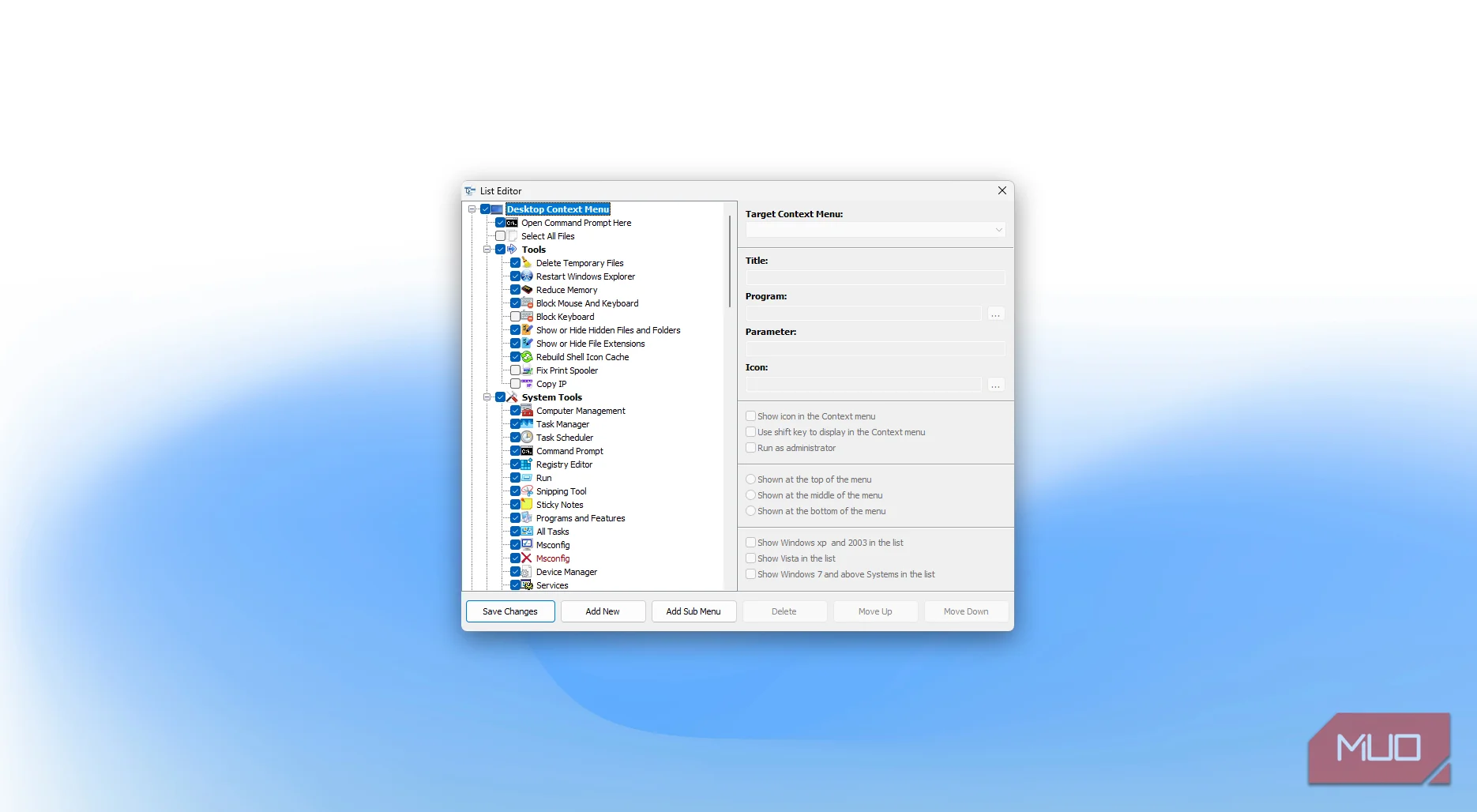
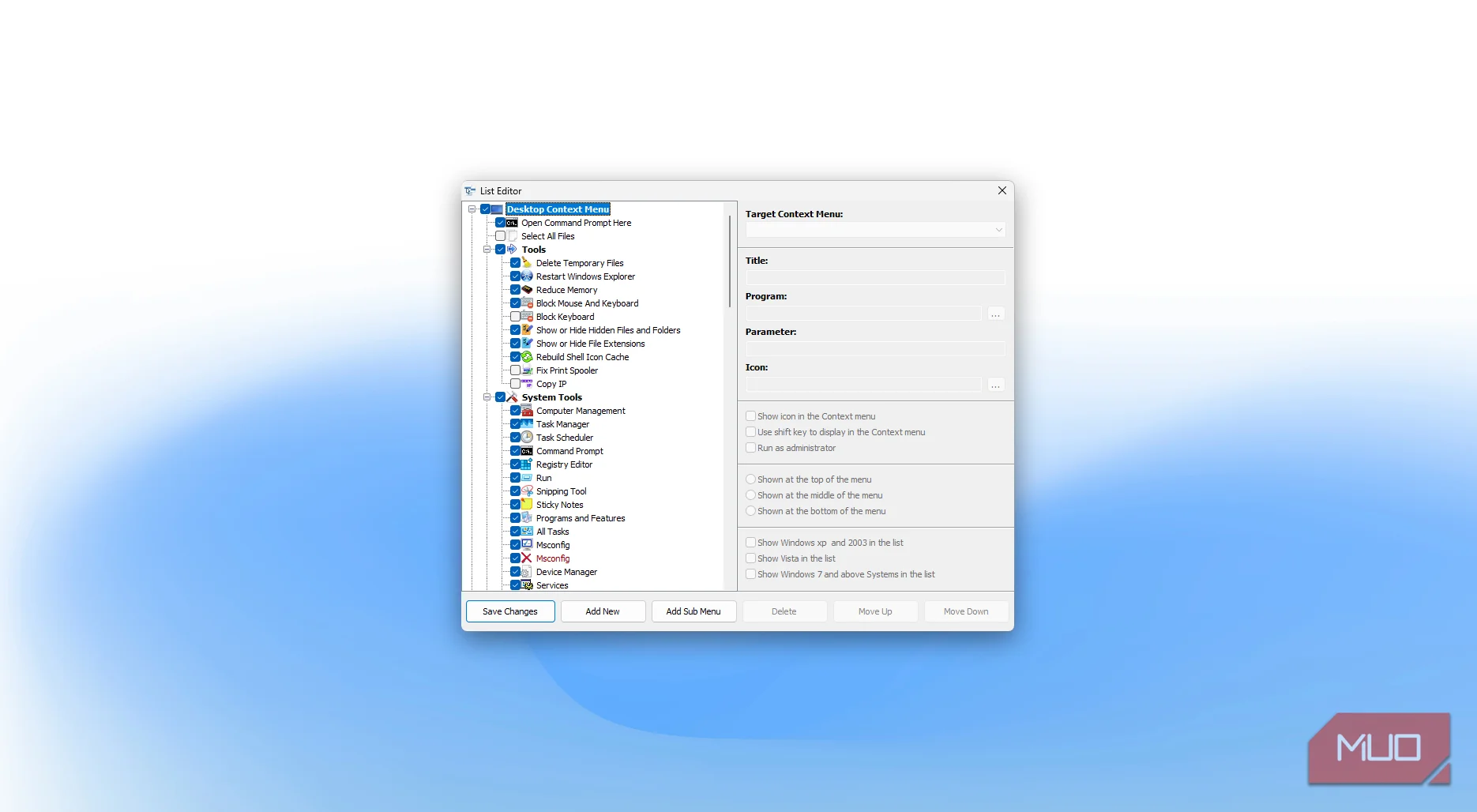
Another handy feature is the List Editor. If the built-in tools aren't enough, you can add practically any program to your context menu. Open the List Editor from the toolbar, drag and drop an .exe file into it, and click Save Changes. Close the List Editor, and your custom program now shows up in Easy Context Menu's main window. Tick its checkbox, hit Apply Changes.
You can also customize where entries appear (top, middle, or bottom of the menu), show or hide icons, and even set items to appear only when you hold Shift while right-clicking.
Cleaning up old context menu entries
Remove junk that apps left behind in your right-click menu
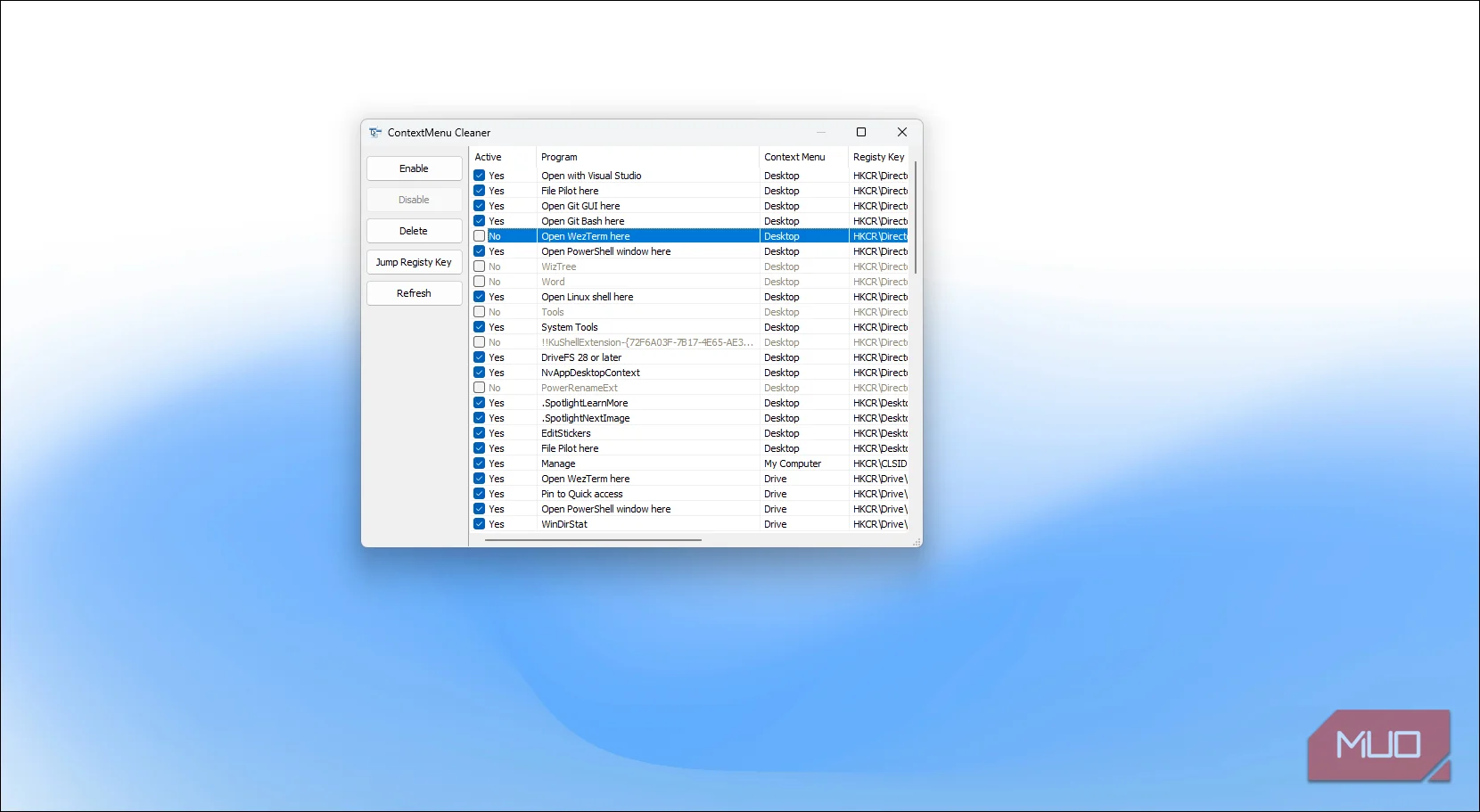
Adding useful shortcuts can make the context menu even more cluttered. Over time, your context menu fills up with entries from every app that decides it deserves a spot in your right-click menu. I had entries from apps I use but never from the context menu.
Easy Context Menu can clean that up too. The app includes a built-in context menu cleaner that lets you selectively remove unwanted third-party entries. Open Easy Context Menu, go to the cleaning feature, select the entry you don't need, and click Delete to remove it.
It's worth noting that this process removes the entry from the registry, so there's no undo button. Take a moment to note the name of anything you remove, just in case. That said, in my experience, I've never needed to restore anything I deliberately removed.
A free tool that made my right-click menu useful again
Microsoft has been working to make the Windows 11 context menu faster and more functional, but I still prefer the classic one and the no-nonsense actions it offers. Yes, it can feel a little cluttered out of the box, but Easy Context Menu handles that problem for me. What it does better, though, is let you customize the context menu and add the tools you reach for the most.