He joined MUO as a full-time writer in 2022, where he covers how-tos, explainers, and tech guides focused on Android, entertainment, and the internet.
Digvijay has previously contributed to several reputable publications, including Alphr, GuidingTech, TheWindowsClub, and MakeTechEasier.
Outside of writing, he enjoys traveling and learning about different cultures, as he believes new experiences spark creativity.
Running low on C drive space usually sends you straight to the Downloads folder, the Recycle Bin, or your installed apps list. Once those obvious spots are cleared out, though, the storage bar still stays in the red. That happened on my Windows 11 machine recently, even after Disk Cleanup and Storage Sense showed nothing left to remove. Digging deeper into the Windows directory uncovered a system folder holding close to 25GB, and a single diagnostic command proved I’d been looking in the wrong places.
File Explorer was lying about this folder
Hard links inflate the reported size
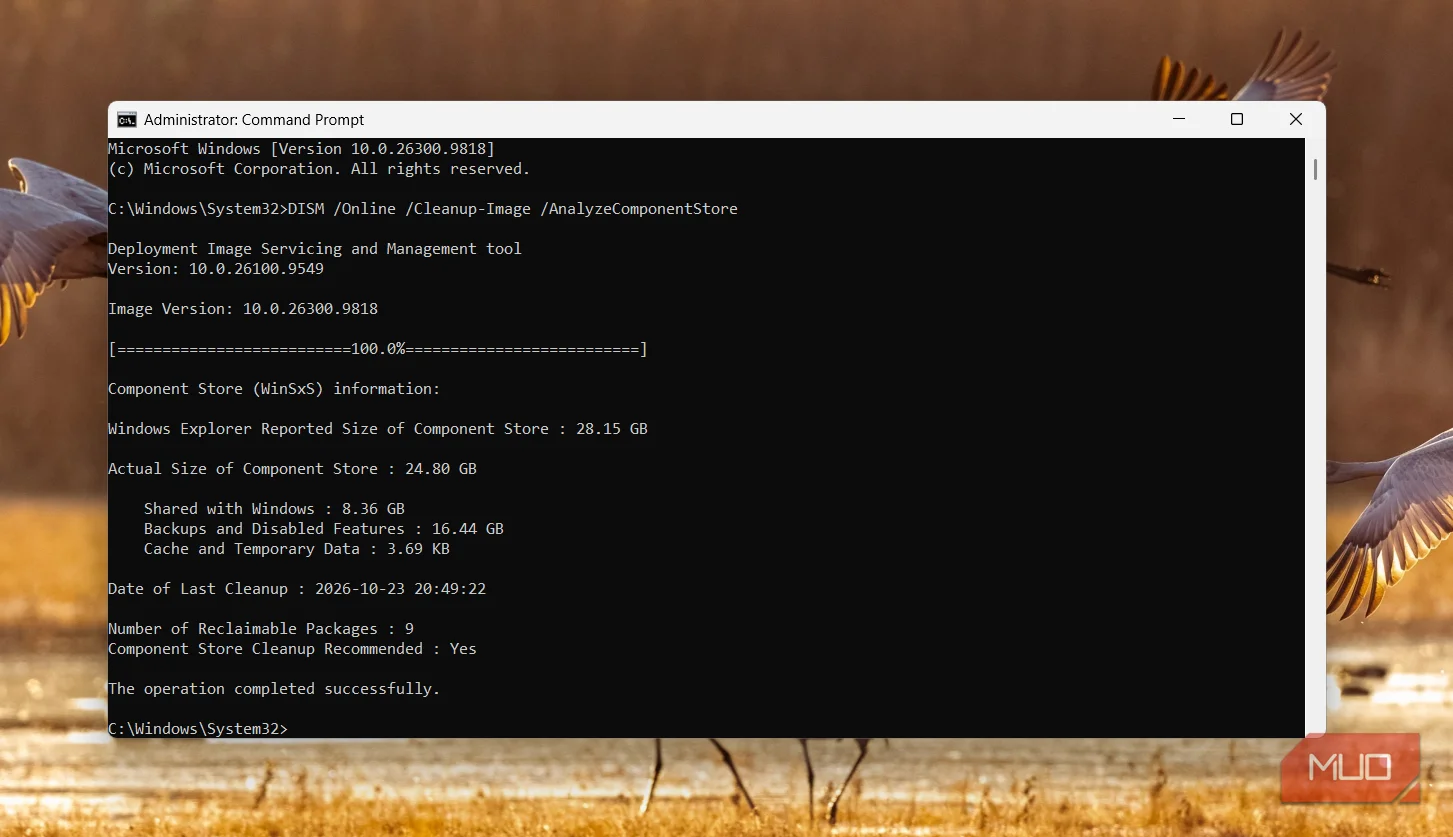
That folder was WinSxS, the Windows Component Store inside the Windows directory. It stores system libraries, update files, and older versions of components that Windows keeps in case it needs to roll back an update. Checking its properties in File Explorer showed 28.15GB on my SSD, and a single system folder had no business being that large.
At first glance, WinSxS looks like it’s packed with duplicate system files. Windows uses NTFS hard links, though, so a single physical file can show up in both WinSxS and System32 at the same time. File Explorer has no way to tell a hard link from an actual copy. It counts every pointer as its own file and inflates the total.
To find out how much disk space WinSxS was really using, I opened Command Prompt as administrator and ran DISM /Online /Cleanup-Image /AnalyzeComponentStore. The report came back with an actual size of 24.80GB. Explorer had been overcounting by over 3GB, all because of those hard links. The report also broke the usage into three categories.
Shared with Windows accounted for 8.36GB of active OS files that can’t be touched, and Cache and Temporary Data barely registered at 3.69KB. The largest share came from Backups and Disabled Features at 16.44GB, with 9 packages flagged as reclaimable. Over half the folder’s actual size was backup data, and most of it was eligible for cleanup.
Clearing old update backups the safe way
DISM clears what Task Scheduler leaves behind
The report’s Date of Last Cleanup line showed a run from just the previous week. Scheduled maintenance had run but left those packages behind. Windows does have a scheduled task for this, stored in Task Scheduler under Microsoft > Windows > Servicing. However, the task waits 30 days after each update before removing anything, and it times out after one hour. If the machine gets frequent updates or rarely idles, the task never catches up.
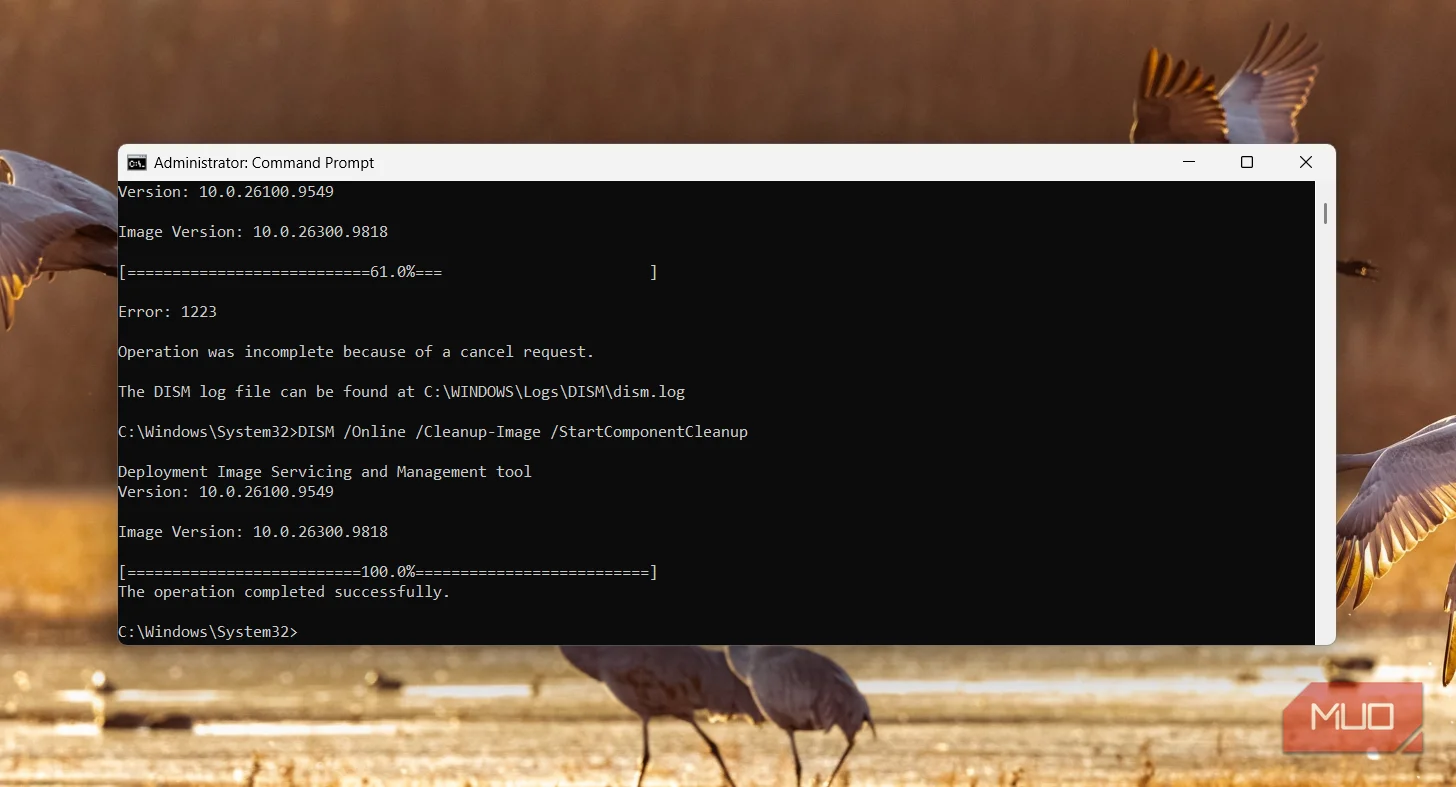
Fortunately, running DISM /Online /Cleanup-Image /StartComponentCleanup from an elevated Command Prompt bypasses both the 30-day wait and the one-hour timeout. This version of the command only removes components that have already been superseded by newer updates, so rollback options stay intact. My first attempt hit Error 1223 at the 61% mark. That error means the operation got canceled, likely because another servicing process was already running. I ran the command again, and the second pass went through.
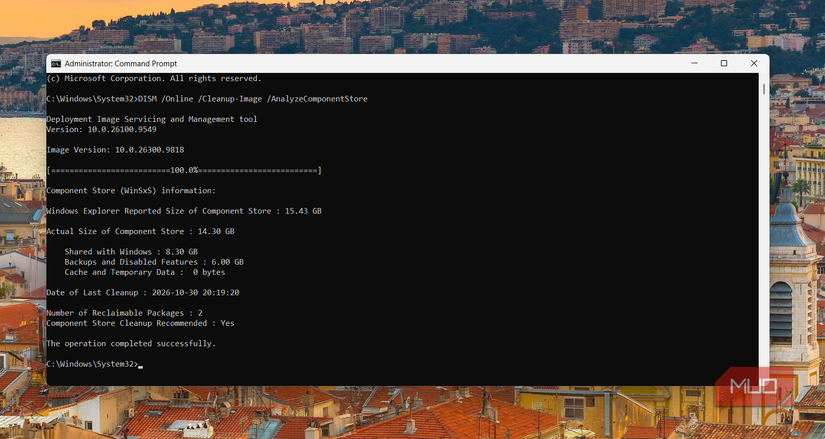
Afterward, I ran AnalyzeComponentStore again to see what changed. The actual size dropped from 24.80GB to 14.30GB. Backups and Disabled Features went from 16.44GB to 6.00GB, and reclaimable packages fell from 9 to 2. That 10.50GB showed up as free space on my drive right away.
Skip the aggressive flag unless you’re sure
More space back, but no update rollback

Leaving 6.00GB behind after a full cleanup can feel slightly anticlimactic, especially on a tight SSD. Adding /ResetBase to the StartComponentCleanup command tells DISM to remove every superseded version of every component in the store, including the backups Windows still keeps to let you uninstall recent updates. You get more space back, but the trade-off is permanent.
If a cumulative patch causes driver issues, blue screens, or application conflicts, you won't be able to uninstall it through Windows Update settings. ResetBase removes the components Windows needs to uninstall updates, so there's no way to reverse it. Old System Restore points that relied on those removed components may also stop working.
Still, the flag does make sense in a few specific cases. A machine being prepared for deployment or imaging benefits from the smallest possible footprint, and rollback data is irrelevant on a fresh installation.
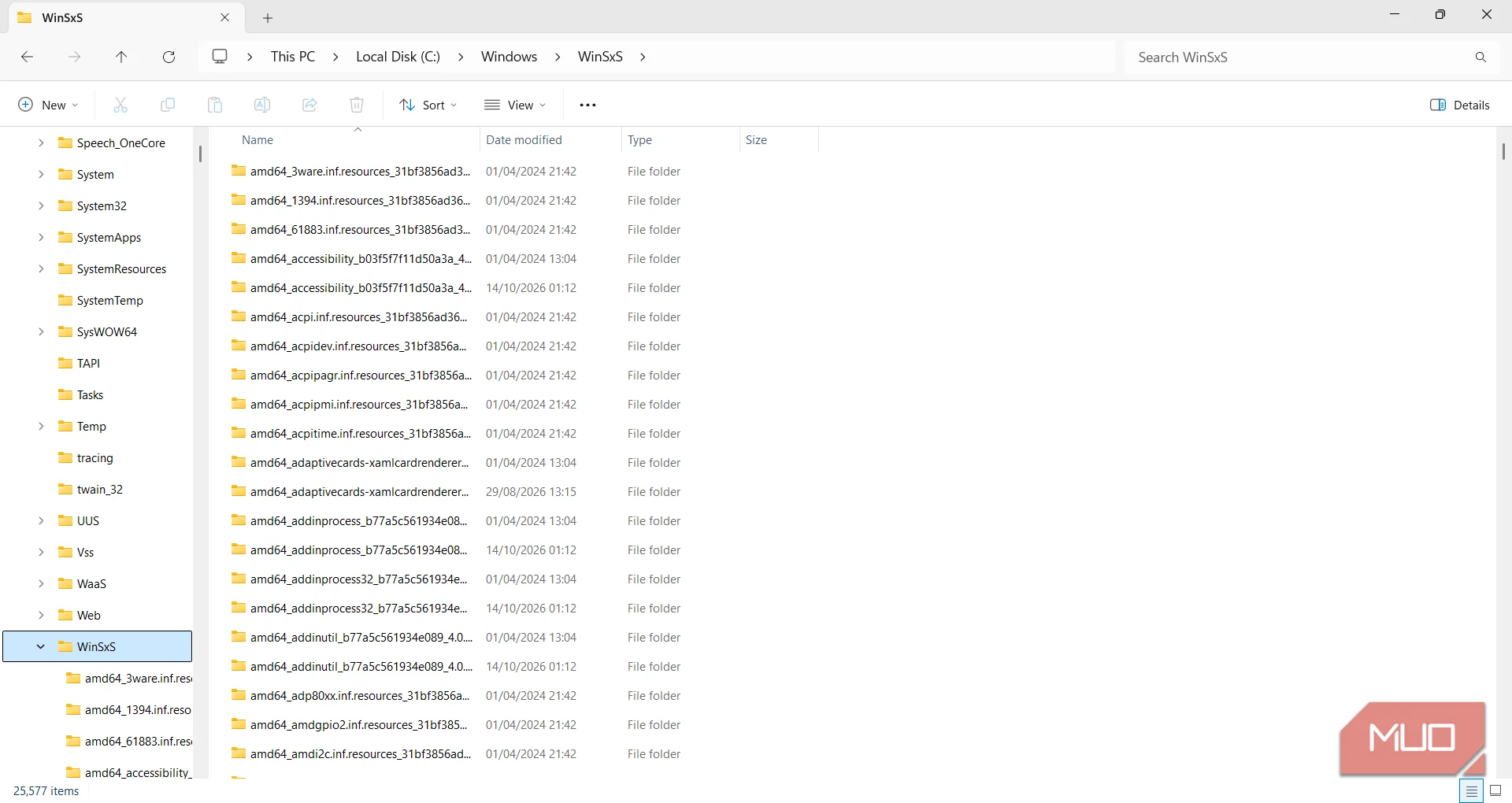
While you’re cleaning up WinSxS, never delete files from that folder by hand. The component store is wired into how Windows services and repairs itself, and removing files directly can corrupt the installation beyond what built-in recovery tools can fix.
Run it before your SSD fills up
The whole process took about fifteen minutes and freed over 10GB of real disk space on my C drive. It’s not something you need to run every week, but on a PC that has collected a year or more of cumulative updates, the component store is worth checking. Even if you skip the cleanup entirely, the AnalyzeComponentStore report maps out exactly where your storage is going. That’s clarity Disk Cleanup and Storage Sense have never offered.